Aggregate Customer Data
This article describes how to count and aggregate customer data for each store in a dataset to create a market area profile. Use the feature, for example, to estimate potential revenue from your stores base on a dataset of potential sales by ZIP code.
- Start by plotting your customer and store locations on a map. Read this article for detailed instructions.
- Click Market analysis icon on the main toolbar.
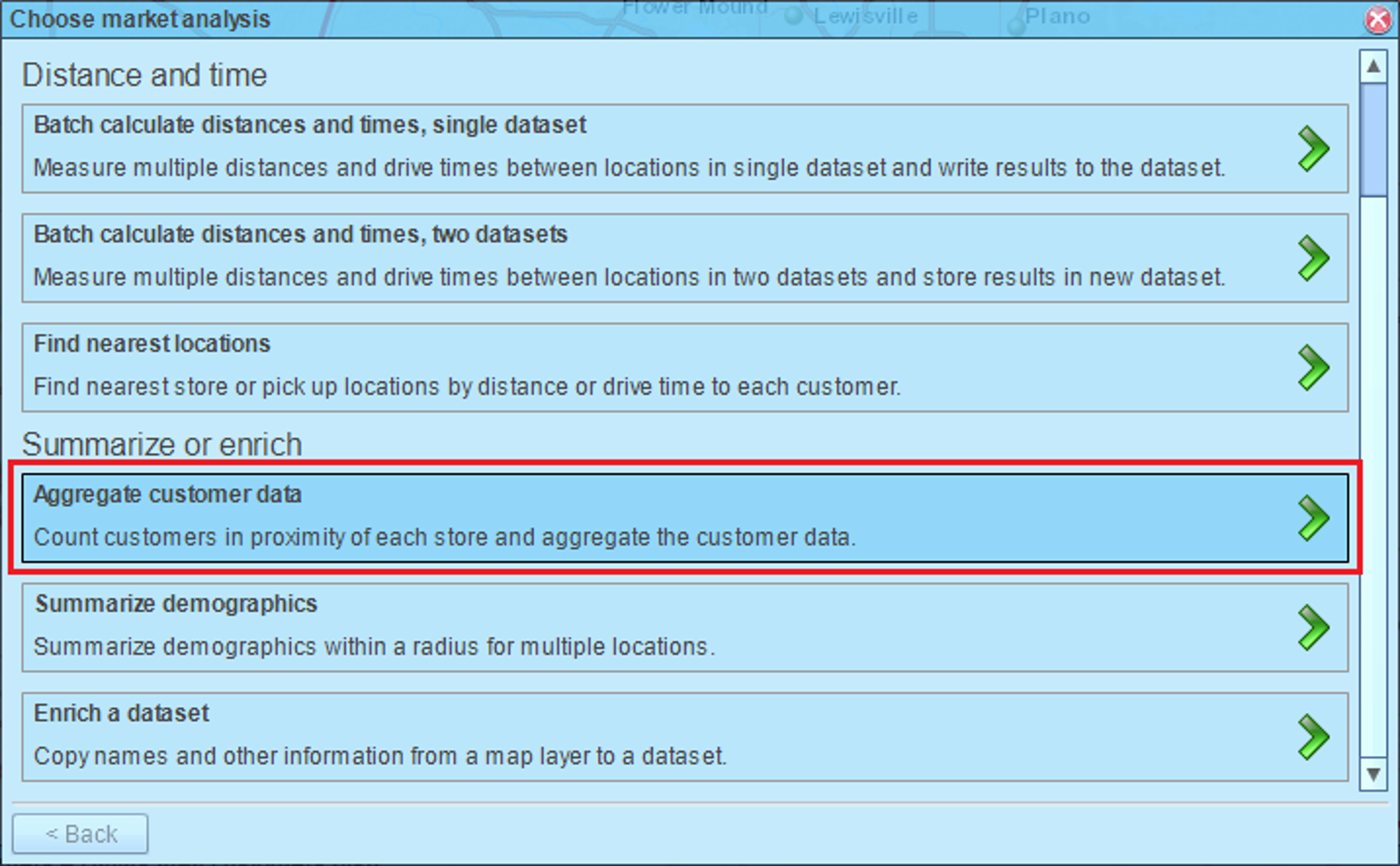
- In the Market analysis wizard choose the Aggregate customer data option.
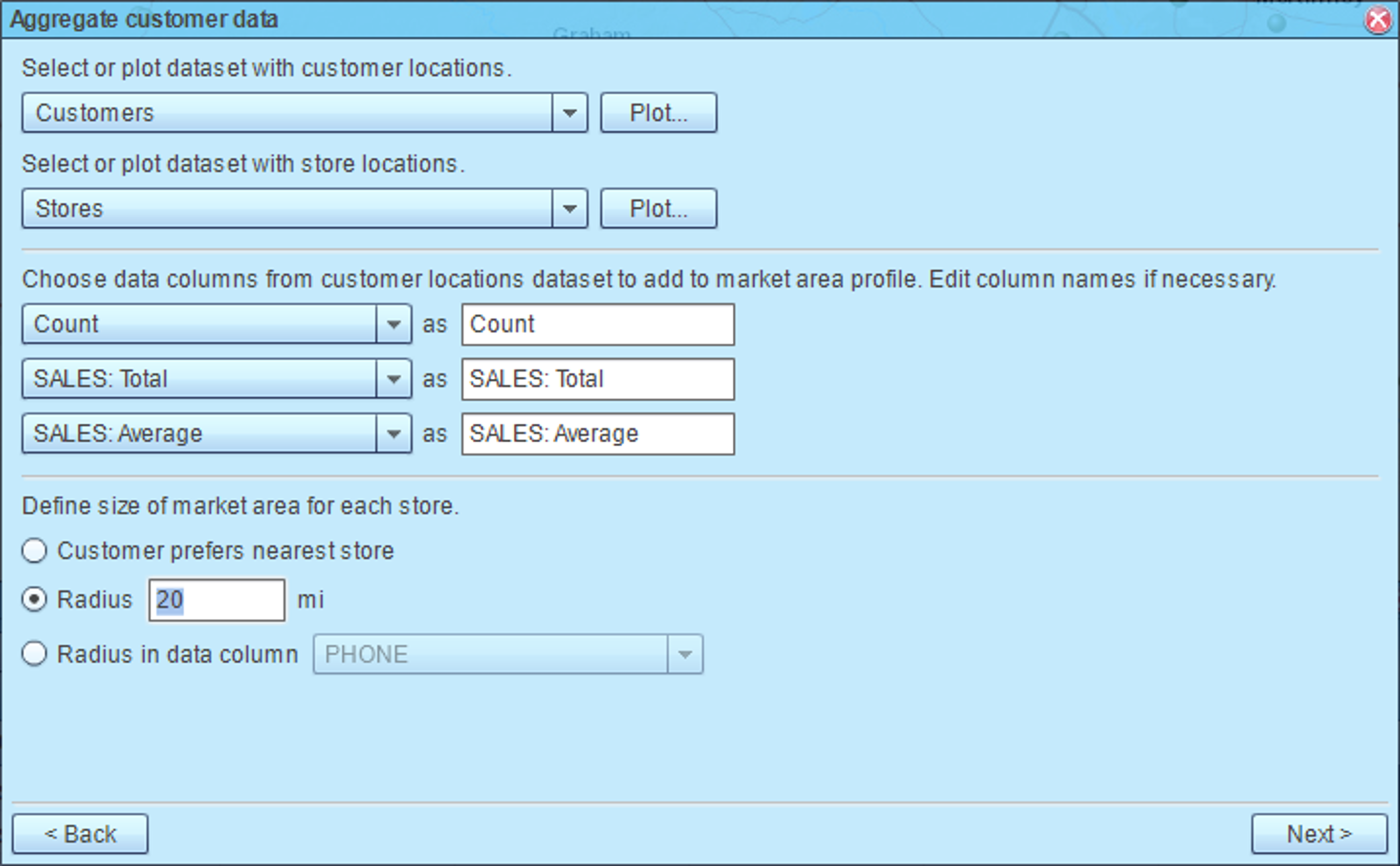
- On the next page of the wizard select your customer and store datasets. You have the option to choose a dataset or a marketing list for each position. Select data columns you want to aggregate. Edit column names if necessary. Define market area for each store. You can assign a customer to the nearest store, set a radius for all stores, or select a data column that contains market area radius. In the example below we set 20 miles radius to all store locations. Click Next button when ready.
- MapBusinessOnline will be showing a progress bar while aggregating your data. Once the market area profile is calculated, you will see the results dialog. Click Done button to exit the dialog.
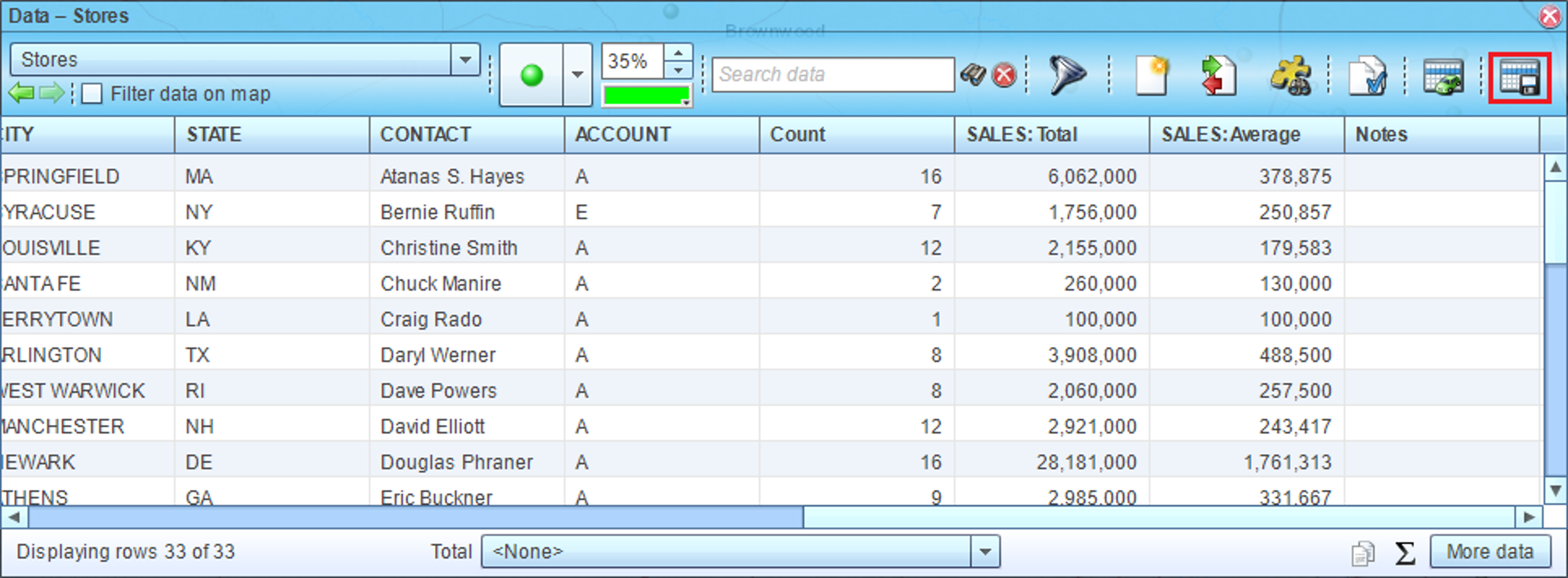
- Now you can see summarized data in the Data window. Use the icon highlighted on the picture below to export the data into a file.