Highlight Market Area on Map
In MapBusinessOnline you can define a market area or territory by ZIP code, county, or state, just to mention a few alignment layers available. This article shows how to highlight a market area or territory on a map.
- Before you start with this article, setup your market area (territory). If you need help with that just follow instructions in one of these articles:
- You may want to zoom or pan your map to better view your market area. Check this article for help to navigate around map: Zoom & pan map.
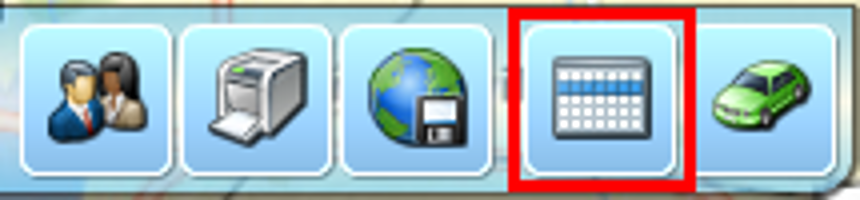
- Now you are ready to highlight the market area on map. Open Data window if it is not already open by clicking the table icon on MapBusinessOnline toolbar.
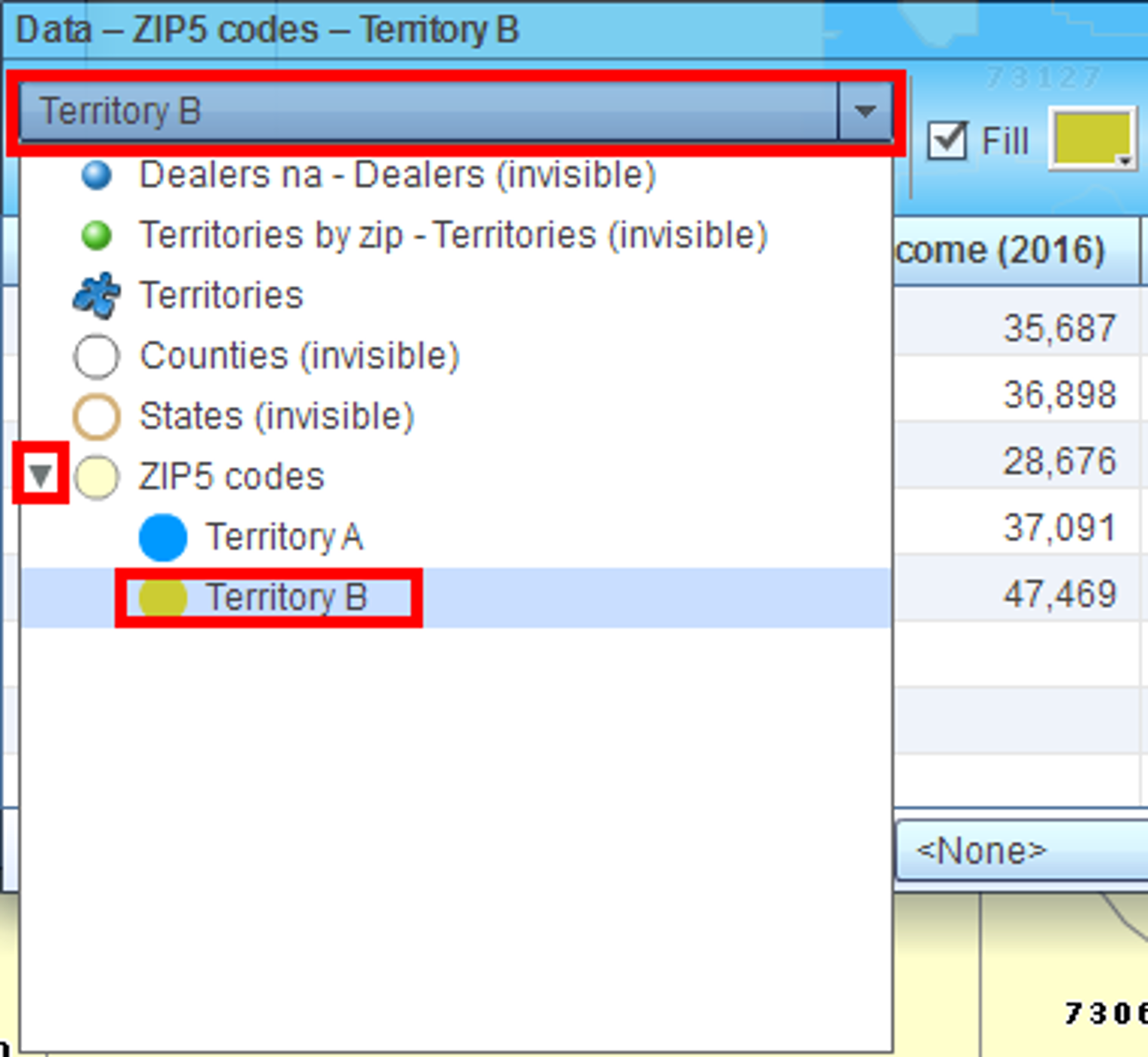
- Select territory you have created in the box located in the upper left corner of Data window.
- Check ‘Filter data on map’ box to hide geography segments (ZIP codes in our example) that are not part of selected territory.

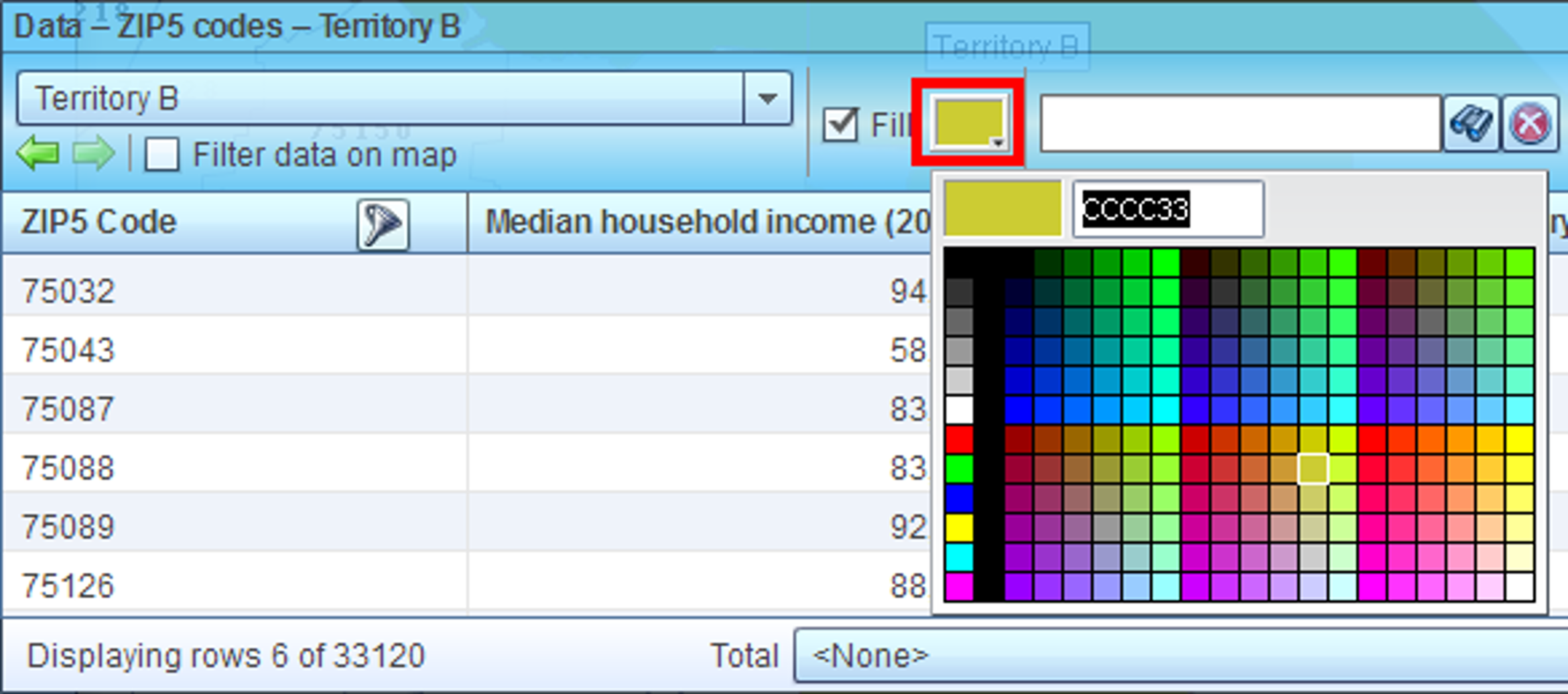
- You may want to change territory color and transparency. Change color by opening up color box in Data window and selecting a color.
- To change market area transparency follow these steps:
- Open Map & Data window if it is not already open.
- Move mouse pointer over territory layer name and click gear icon that will appear.
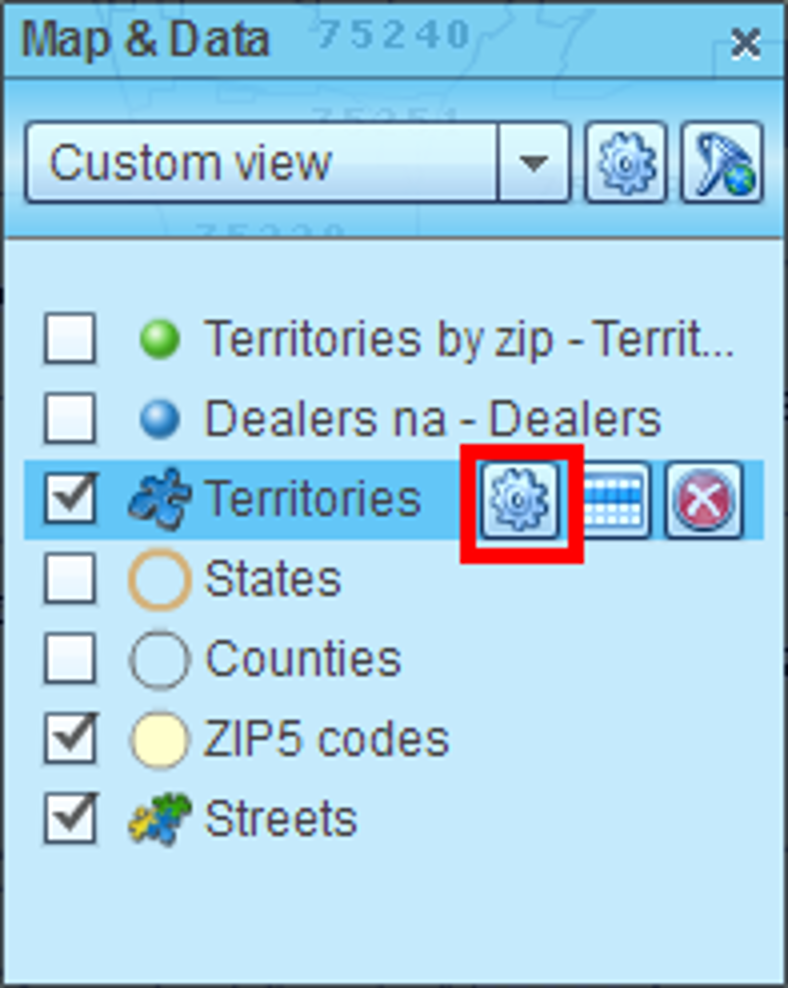
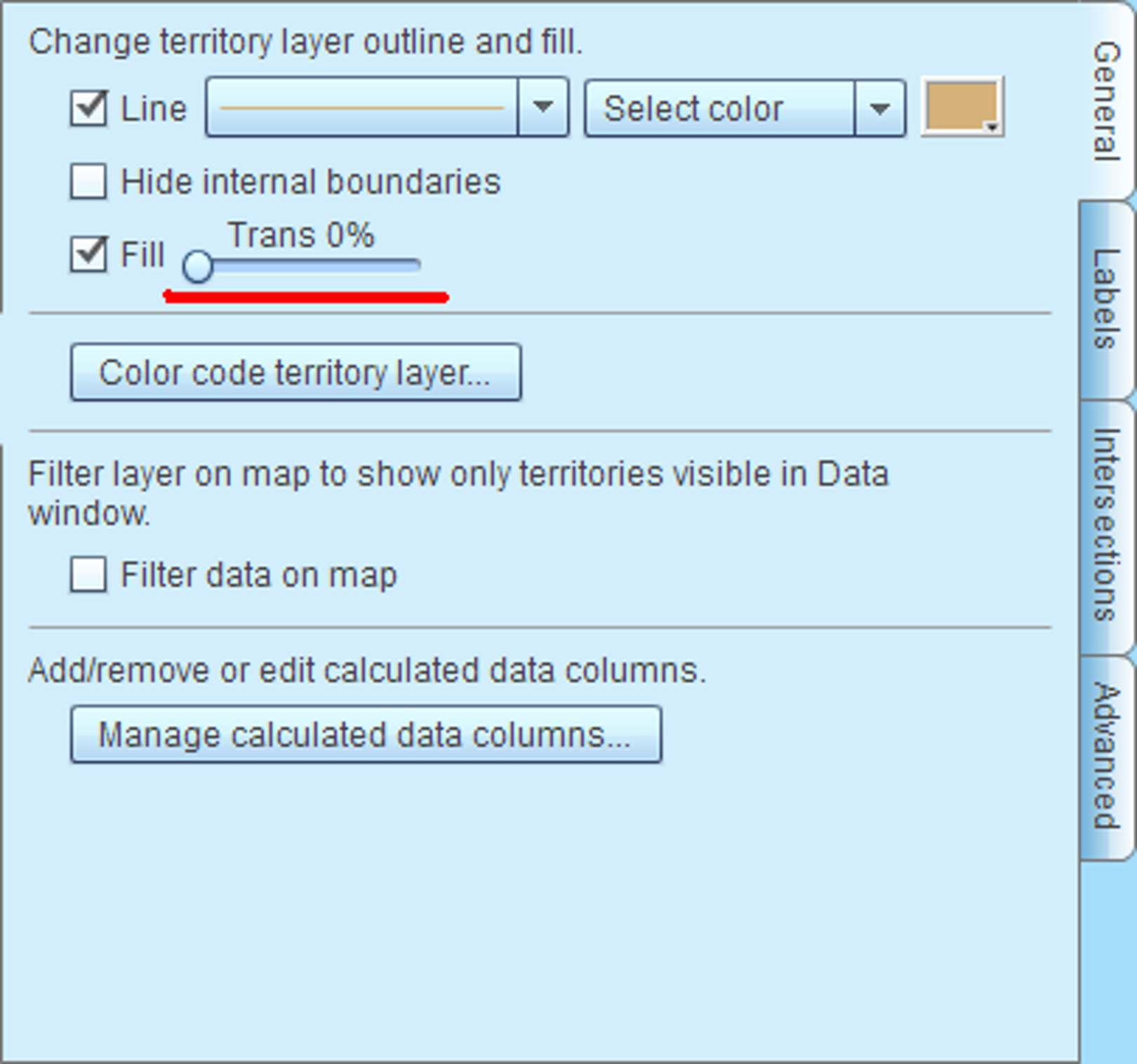
- ‘Manage map and data’ dialog with territory layer options will pop up. Slide Transparency to desired level.
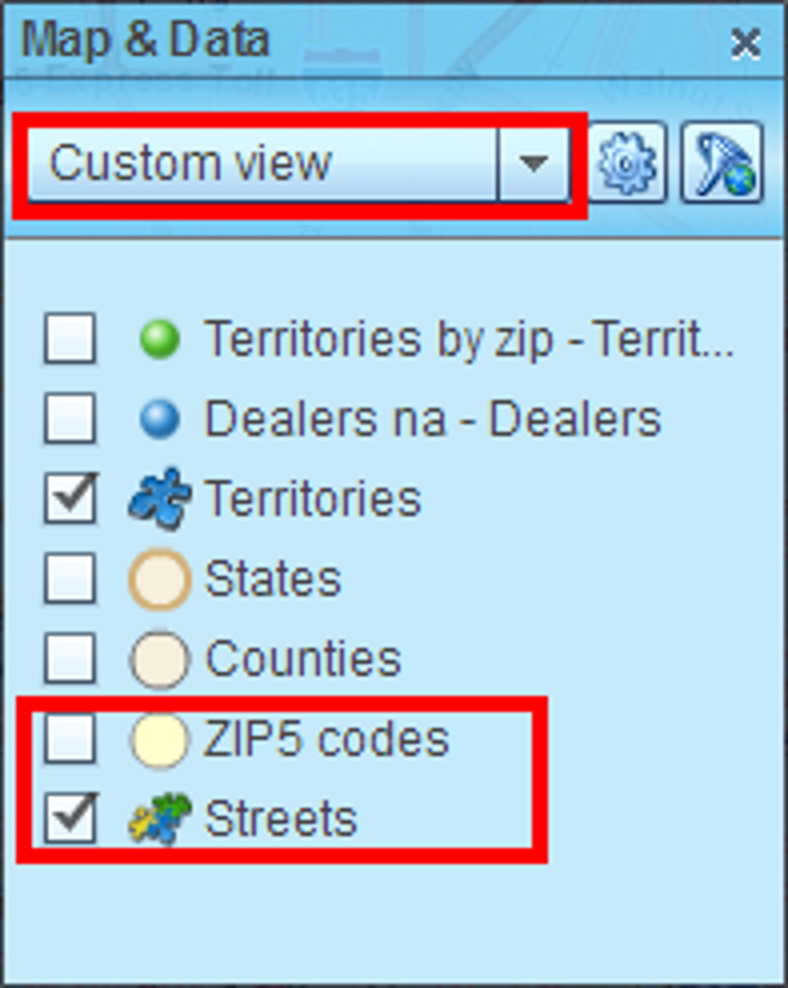
- If you want to show market area over streets map, select Custom map template (if not already selected) and turn on visibility of Streets layer in Map & Data window. Turn off alignment layer (ZIP codes) display to view market area better.
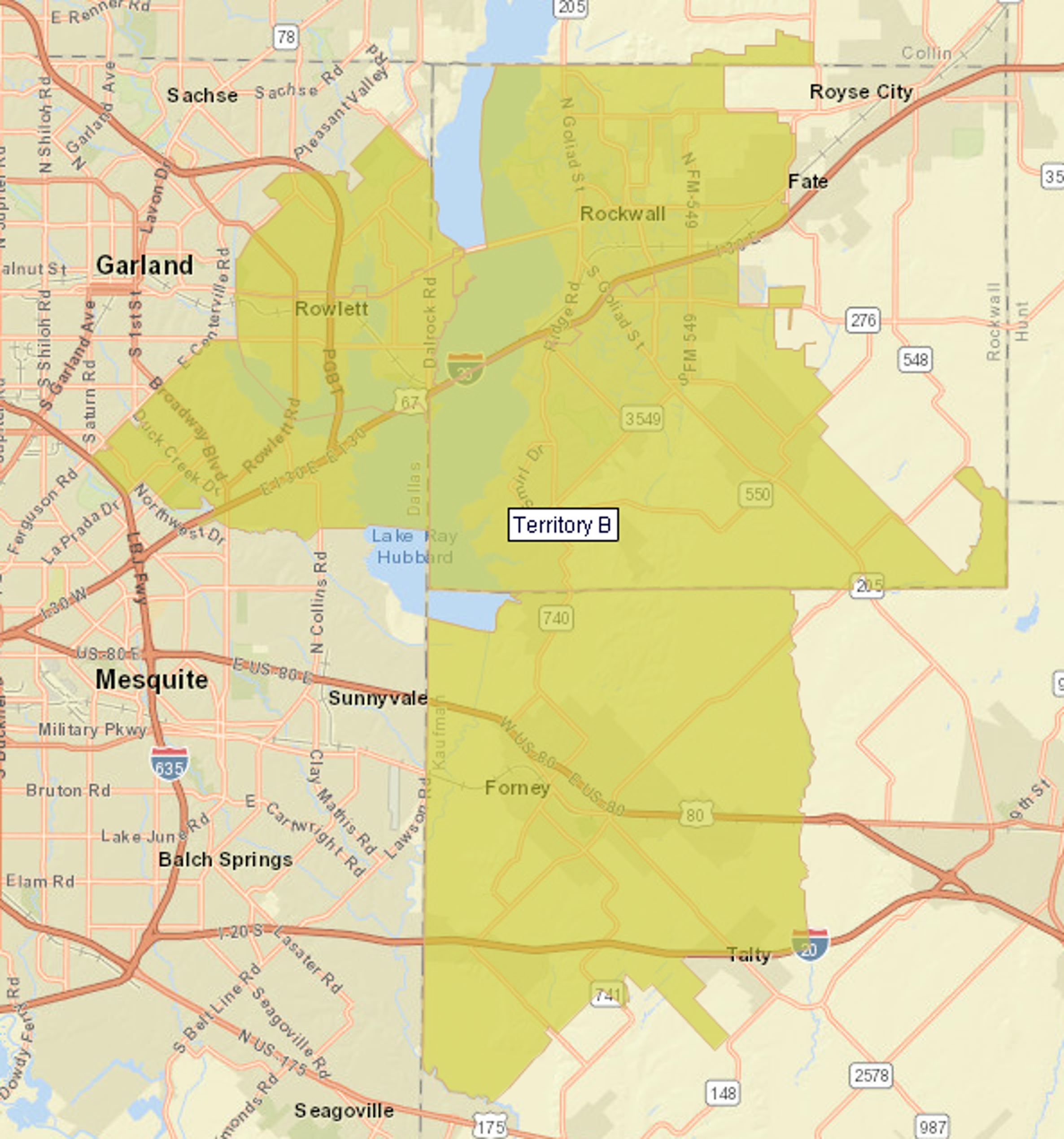
- Finally you will have your market area highlighted over streets map as on the picture below.