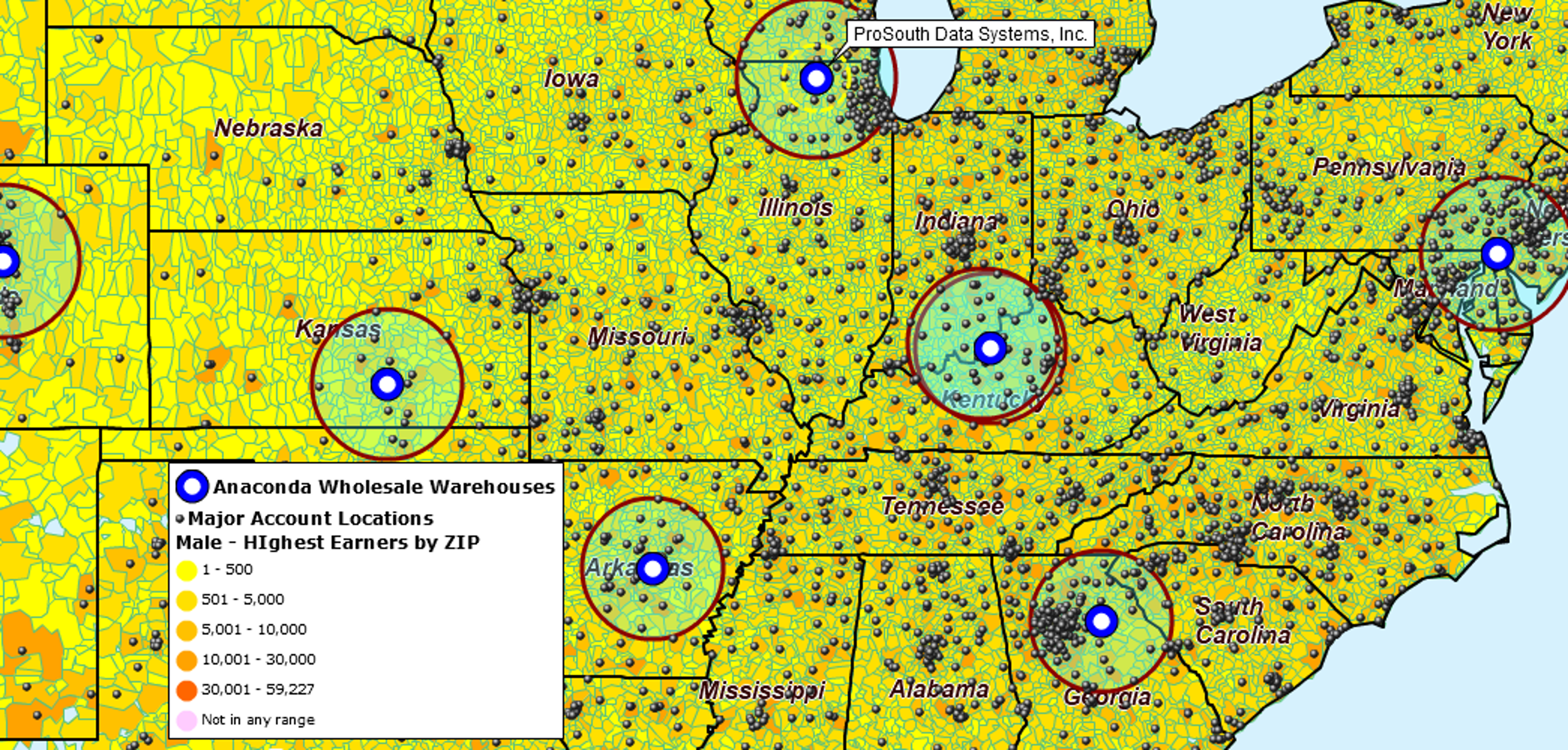
Assign Customers to the Nearest Store, Warehouse, or Service Center
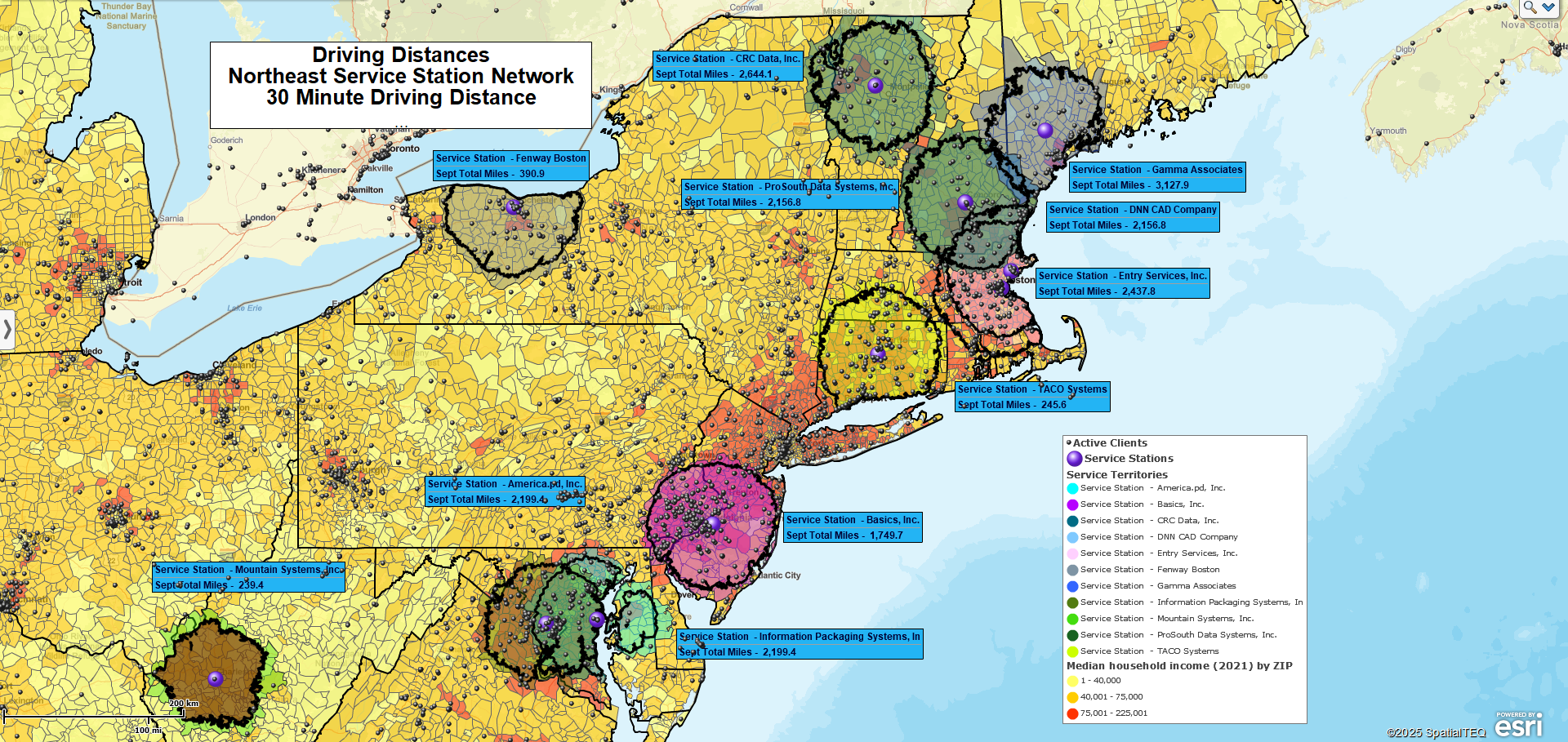
How do you determine which store, warehouse, clinic should serve each customer?
MapBusinessOnline Pro helps organizations compare customer locations against facility locations and identify the nearest location using drive time, drive distance, or straight-line distance analysis.
A retailer may assign customers to stores. A distributor may allocate deliveries to warehouses. Healthcare organizations may match patients to clinics. Service companies may route requests to the nearest branch office.
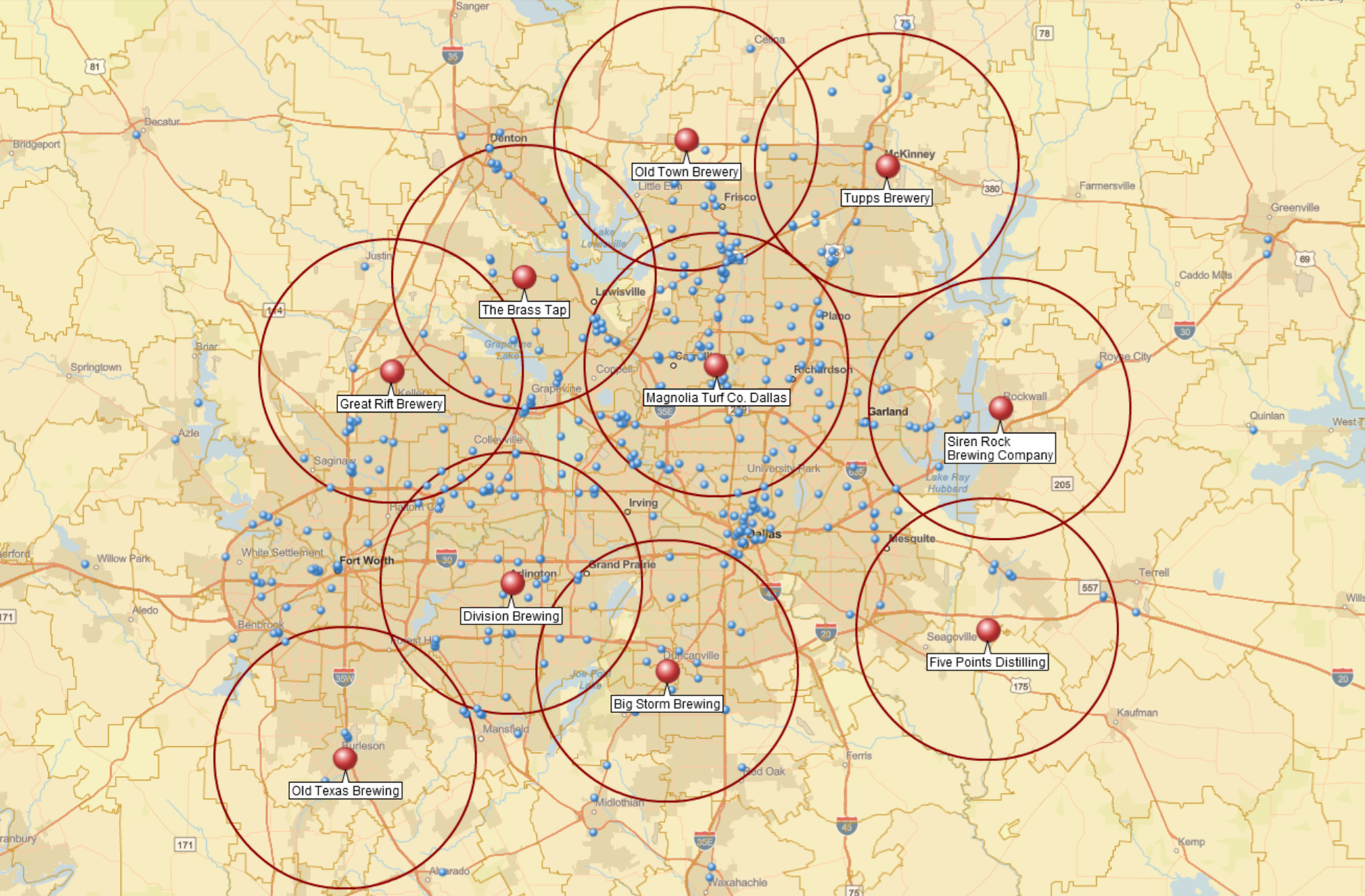
A radius map is useful for visualizing facility coverage, but nearest-location analysis goes a step further by identifying the closest facility for every location in your dataset.
Step 1: Load Customer and Facility Data
Nearest-location analysis begins by comparing two location datasets.
The first dataset contains locations that require service. These could include:
- Customers
- Prospects
- Patients
- Delivery destinations
- Service requests
The second dataset contains the facilities that provide service. Examples include:
- Stores
- Warehouses
- Clinics
- Branch offices
- Service centers
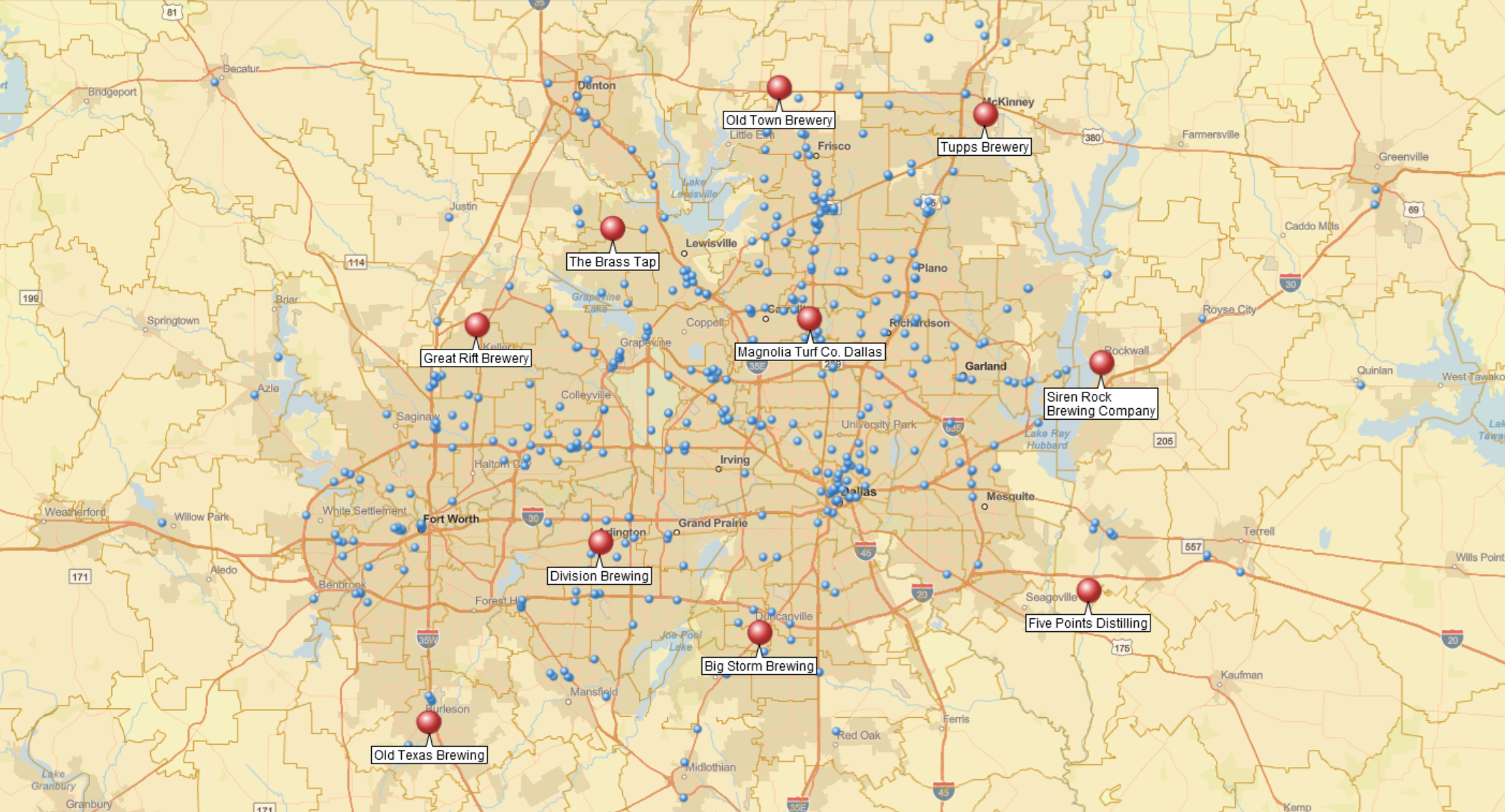
Once both datasets are imported into MapBusinessOnline Pro, the software compares every location in the customer dataset against every location in the facility dataset.
For example, a retailer might compare 25,000 customer records against 40 store locations. A distributor could compare thousands of delivery destinations against multiple warehouse facilities. A healthcare organization could compare patient addresses against clinic locations.
The process is the same regardless of industry: compare one set of locations against another and determine which facilities are closest.
Step 2: Choose How Proximity Is Measured
After plotting both datasets on a map, open the Market Analysis tools and select Find Nearest Locations. The analysis wizard guides you through selecting datasets, choosing a distance measurement, and configuring analysis options.
MapBusinessOnline Pro supports three methods for measuring proximity.
Straight-Line Distance
Straight-line distance measures the direct distance between two locations.
This approach is useful for broad geographic analysis where a quick approximation is sufficient.
Drive Distance
Drive distance measures actual road miles between locations.
Organizations often use drive distance when evaluating delivery coverage, service territories, or logistics operations.
Drive Time
Drive time measures travel time along the road network.
For many business applications, drive time is the most practical measurement because it reflects how customers, employees, and service vehicles actually travel. Drive-time calculations incorporate historical traffic patterns, providing a more realistic estimate than straight-line or distance-based measurements alone.
You can also define a maximum distance or drive-time threshold for the analysis. Locations that fall outside the threshold can remain unassigned, helping organizations identify service gaps, underserved areas, or customers located beyond preferred coverage limits.
Step 3: Assign Each Customer to the Nearest Facility
Once a proximity method is selected, MapBusinessOnline Pro performs the analysis and identifies the nearest facility for every location in the customer dataset. The analysis can also return multiple nearby facilities ranked by distance or drive time.
Results can include:
- Assigned facility
- Straight-line distance, driving distance or driving time
- Multiple nearest facilities ranked by proximity
- Unassigned locations that exceed distance or drive-time thresholds
A typical output might look like this:
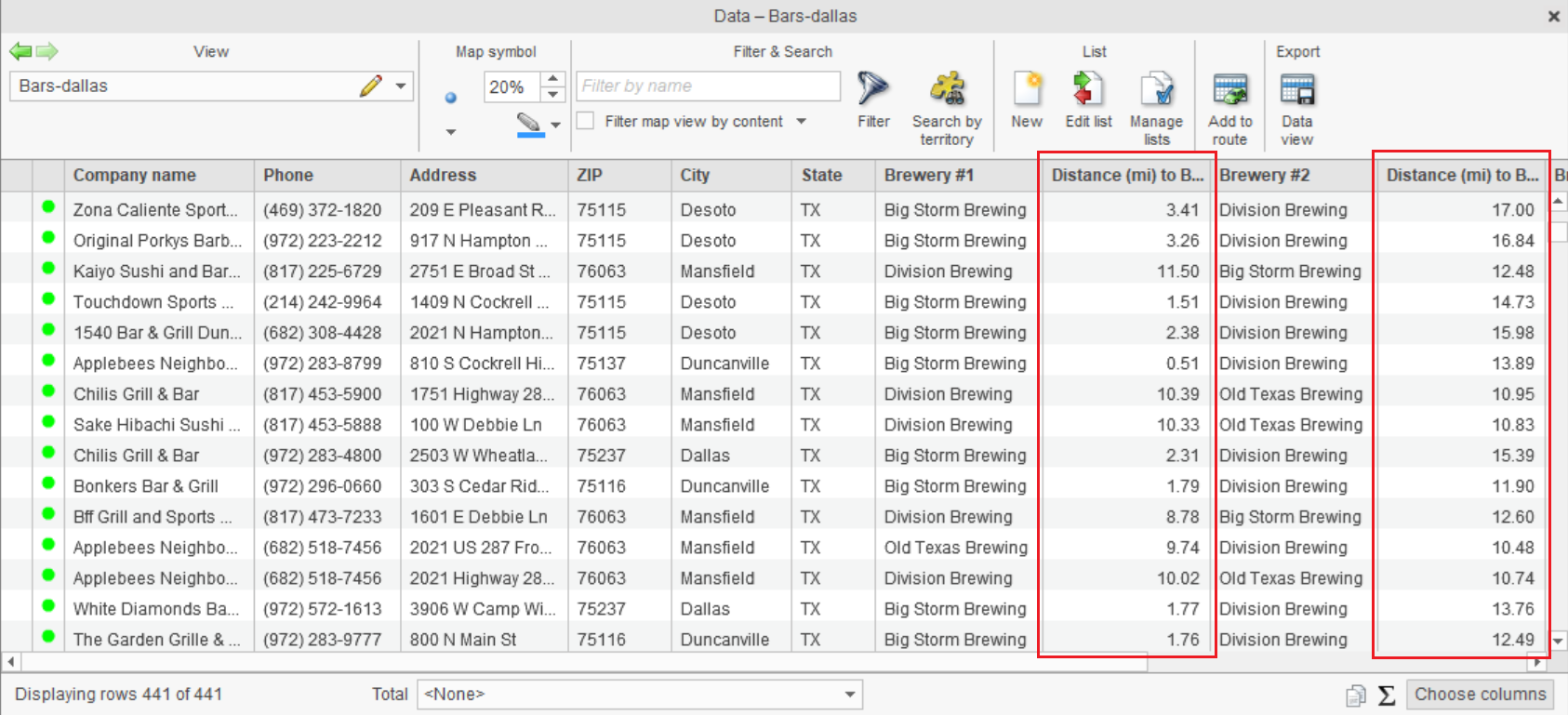
Instead of manually reviewing addresses and estimating proximity, the analysis automatically assigns every record to its nearest facilities across the entire dataset.
For organizations managing thousands of customers or service locations, this can save hours of manual work while creating a consistent assignment process across the business.
See the Find nearest store or pickup locations help article for detailed product instructions.
Step 4: Export Results for Planning and Operations
Once the analysis is complete, results can be exported to CSV for reporting and operational use.
The export includes:
- Customer or location name
- Assigned facility
- Drive time
- Drive distance
- Additional nearest facilities (when selected)
The exported file can be shared with operations teams, imported into business systems, or used for further analysis in spreadsheet tools.
Organizations often use these exports to maintain customer-to-facility assignments, support fulfillment planning, review service coverage, and evaluate facility performance.
The result is more than a map. It is an operational dataset that helps organizations make consistent location-based decisions.