Create a Radius Map

With MapBusinessOnline, You Can:
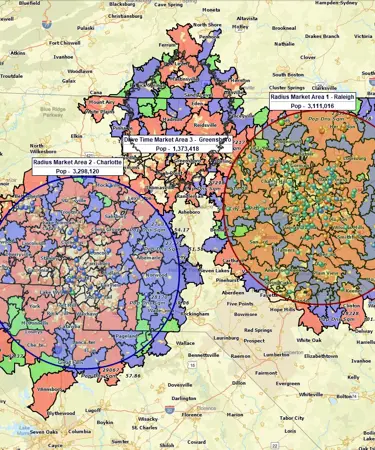
- Create Radius Maps around single or multiple locations
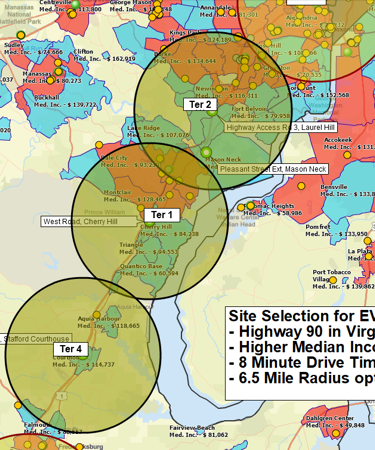
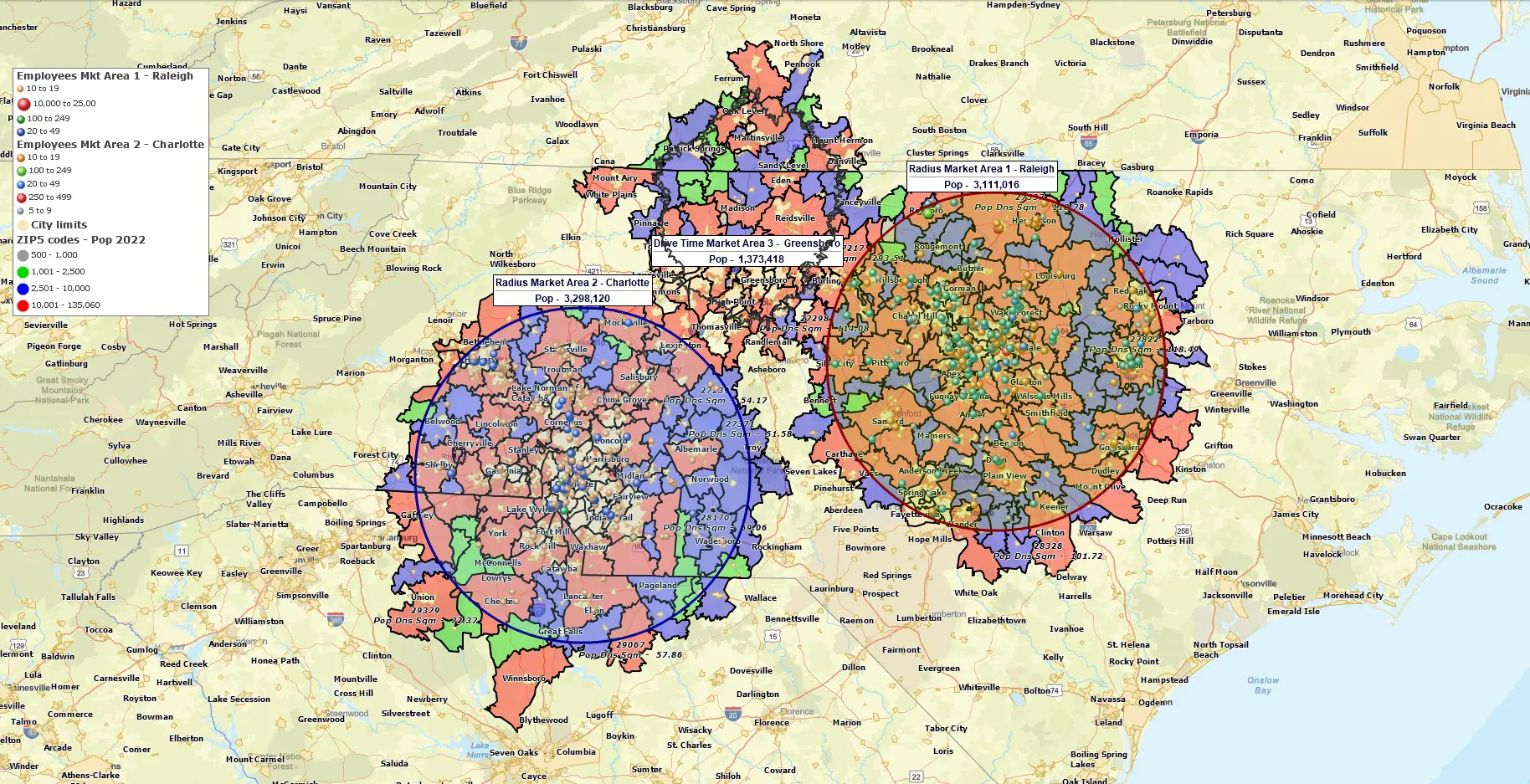
- Define Coverage Areas using radius rings and drive-time areas
- Search Data Within a Radius including customers, businesses, ZIP Codes, counties, and other geographic data
- Summarize Demographics within a radius
- Compare Locations using consistent coverage areas
- Build Territories based on a radius or driving time for sales, service, franchise, and delivery operations
Create a Radius Map Around a Single Location
Create a radius map around an address, store, office, warehouse, ZIP Code, dealer location, franchise location, or candidate site.
- Select a Location: Search for an address, city, or ZIP Code in MapBusinessOnline, or select a location from imported business data.
- Choose a Radius Distance: Define the geographic area surrounding the location using a distance such as 5, 10, 25, or 50 miles.
- Generate the Radius Map: Create a radius map around the selected location. The resulting area can then be used to search data, find business listings, summarize demographics, and support territory planning. See Make a radius map help article for detailed screen-by-screen instructions.
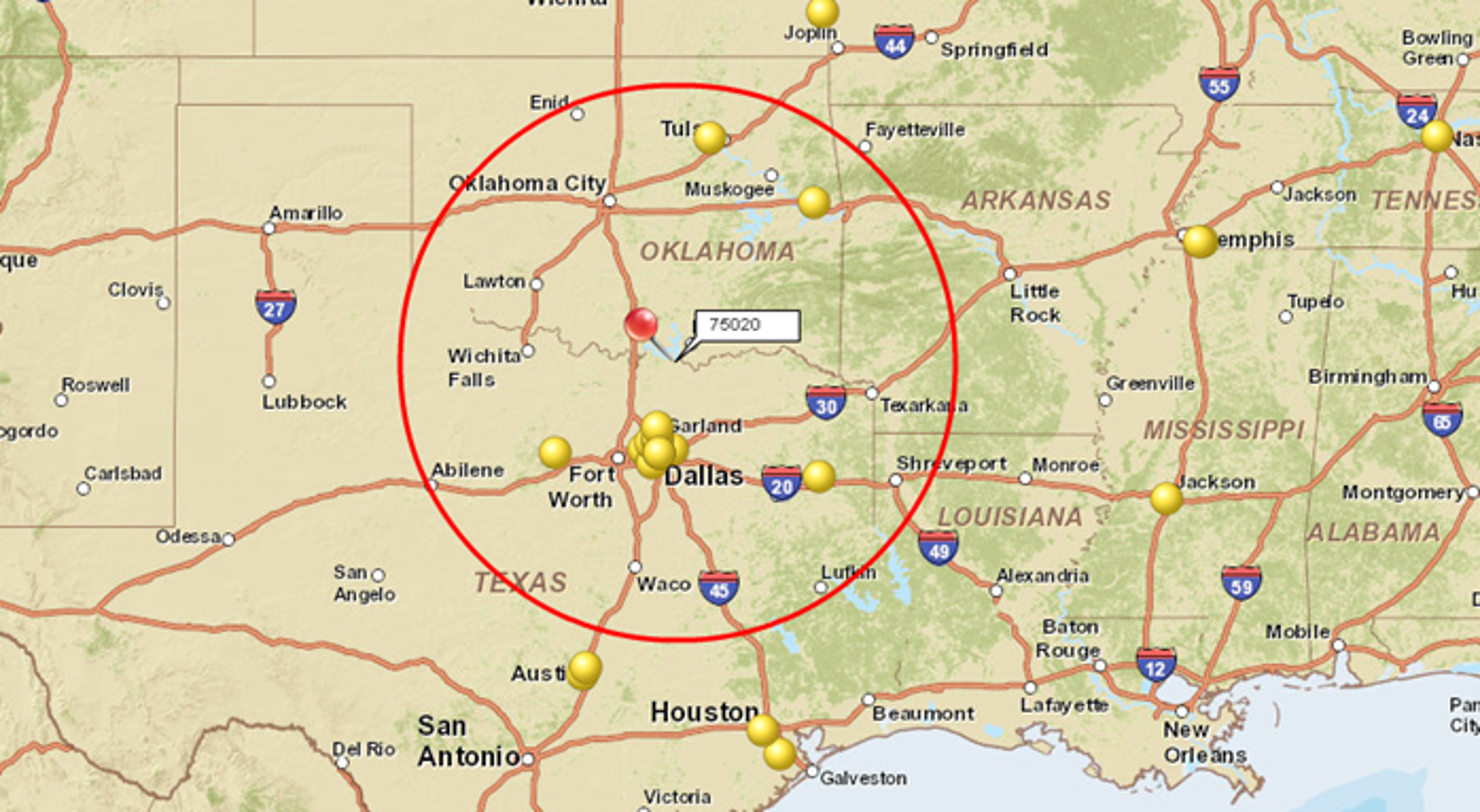
Create Radius Maps for Multiple Locations at Once
Create radius maps around an entire network of stores, facilities, service centers, dealer locations, franchise locations, or candidate sites.
- Import Location Data: Import a spreadsheet of locations into MapBusinessOnline.
- Define the Radius Distance: Choose the radius size you want to apply to the imported locations.
- Generate Radius Maps for All Locations: MapBusinessOnline automatically creates radius maps around every location in the dataset. Each radius map can then be used to search data, compare locations, summarize demographics, or support territory and service area planning.
Create Radius Rings
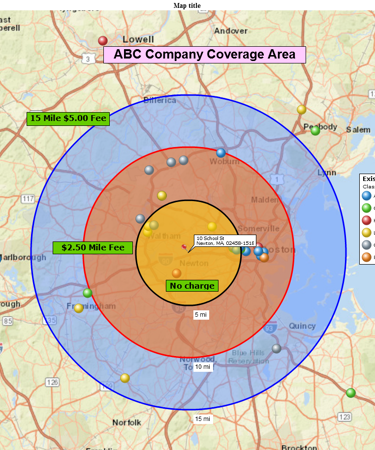
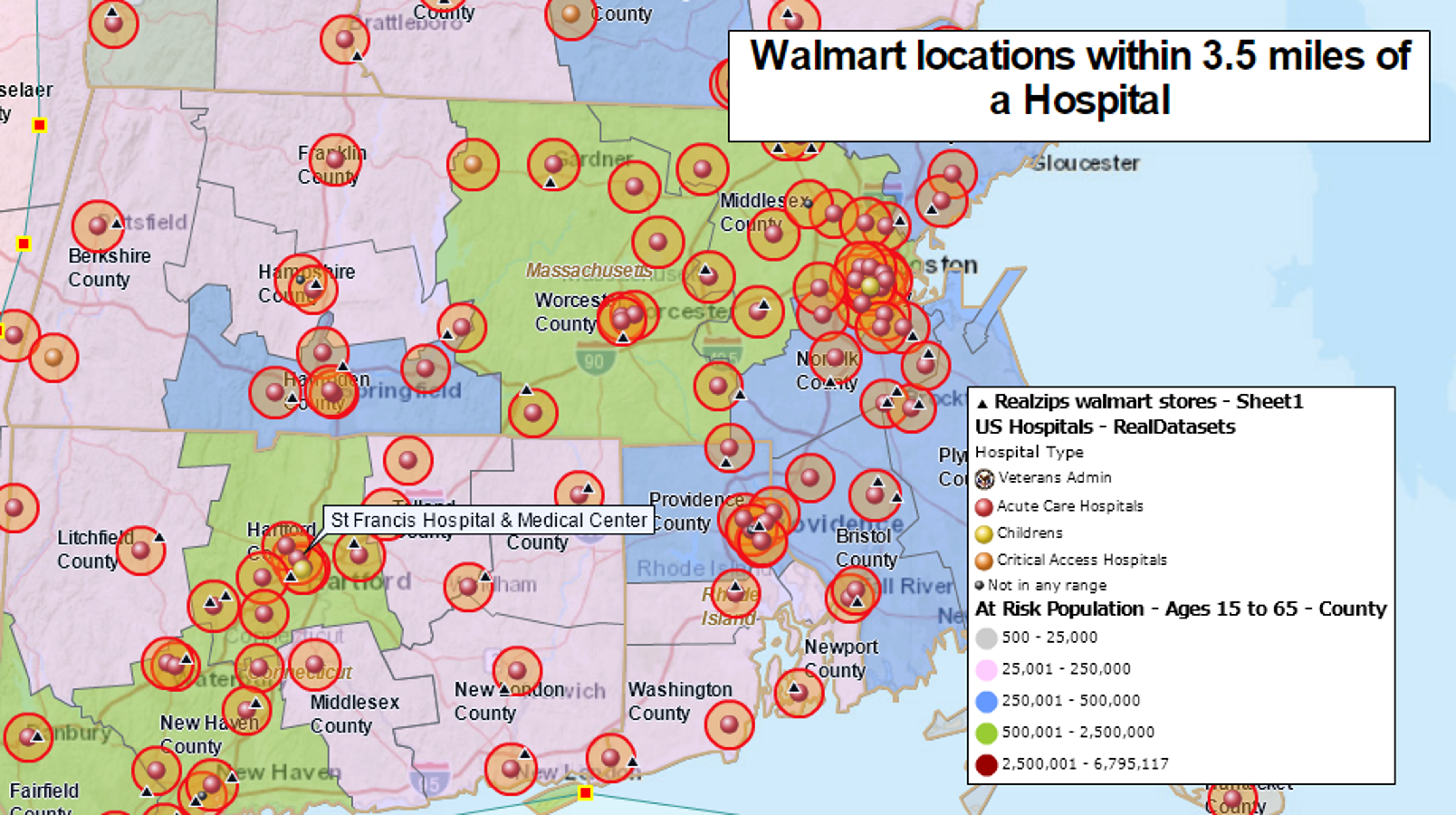
Radius rings, also called concentric circles, create several distance-based coverage areas around the same location.
- Select a Location: Search for an address, city, ZIP Code, or business location, or select a location from imported data.
- Create Multiple Radius Maps From the Same Location: Create radius maps using different distances, such as 5, 10, and 25 miles, around the same center point.
- Analyze Distance-Based Zones: Use the radius rings to segment customers by distance, compare demographics, and evaluate nearby, mid-range, and extended market areas.
Radius rings can also be generated for imported location datasets, allowing you to create consistent distance bands around many locations for coverage analysis and comparison.
Create a Drive-Time Radius Map
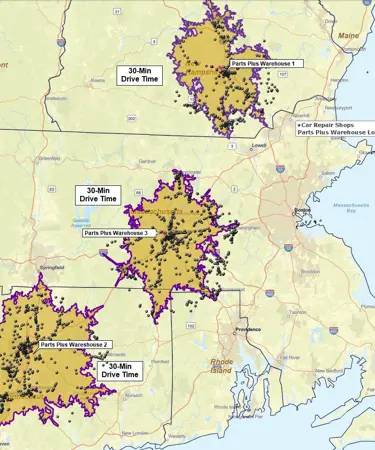
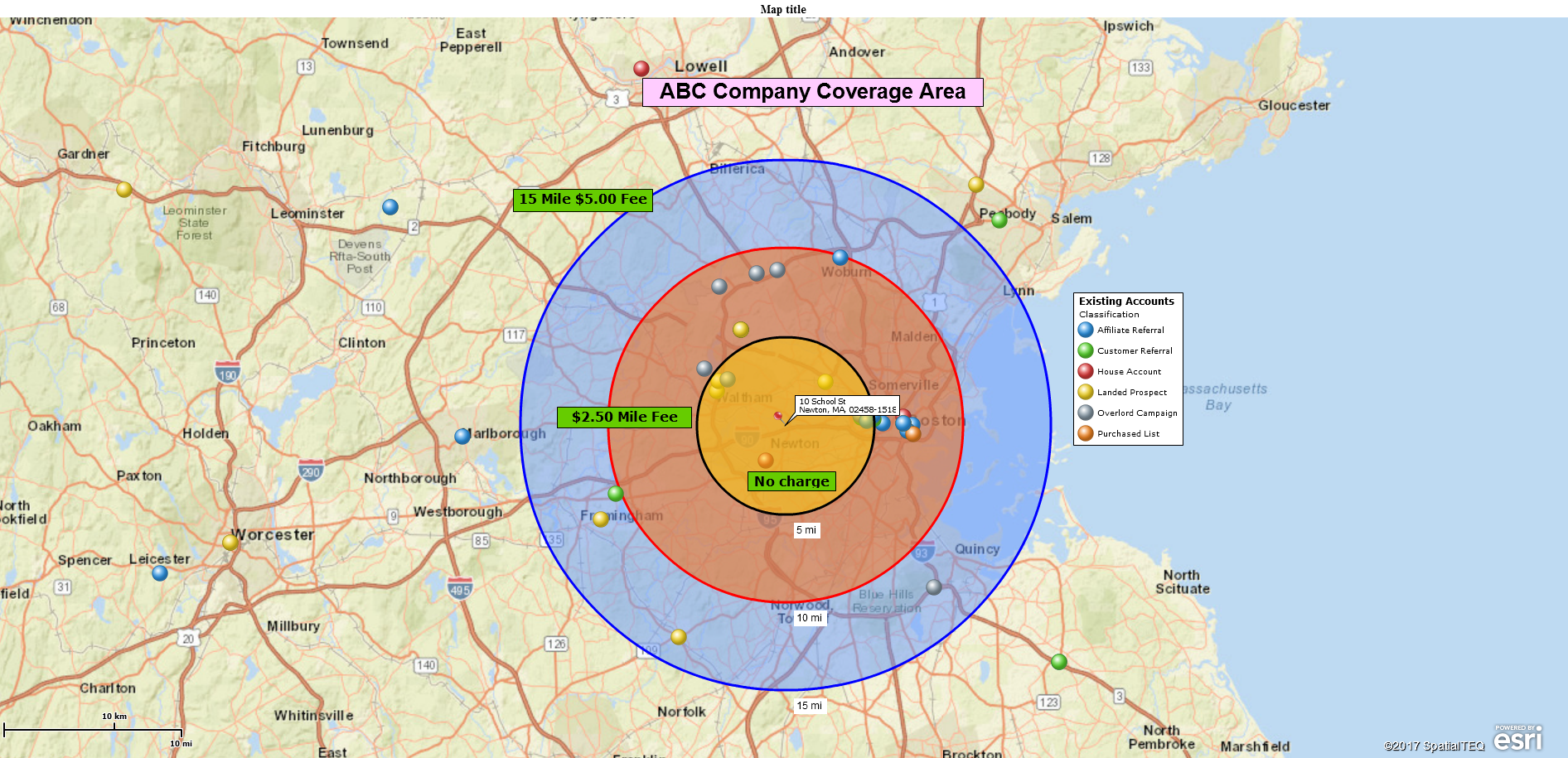
Drive-time radius maps and drive-distance maps define coverage based on a road network rather than straight-line distance.
- Select a Location: Search for an address, city, ZIP Code, or business location, or select a location from imported data.
- Choose a Drive-Time or Drive-Distance: Define the area using a travel time such as 15, 30, or 60 minutes, or a driving distance such as 10, 25, or 50 miles.
- Generate the Coverage Area: Create an area based on estimated travel routes and road networks rather than straight-line distance.
Drive-time and drive-distance areas are useful when accessibility and travel conditions are more important than simple distance from a location.
What Can You Do With a Radius Map?
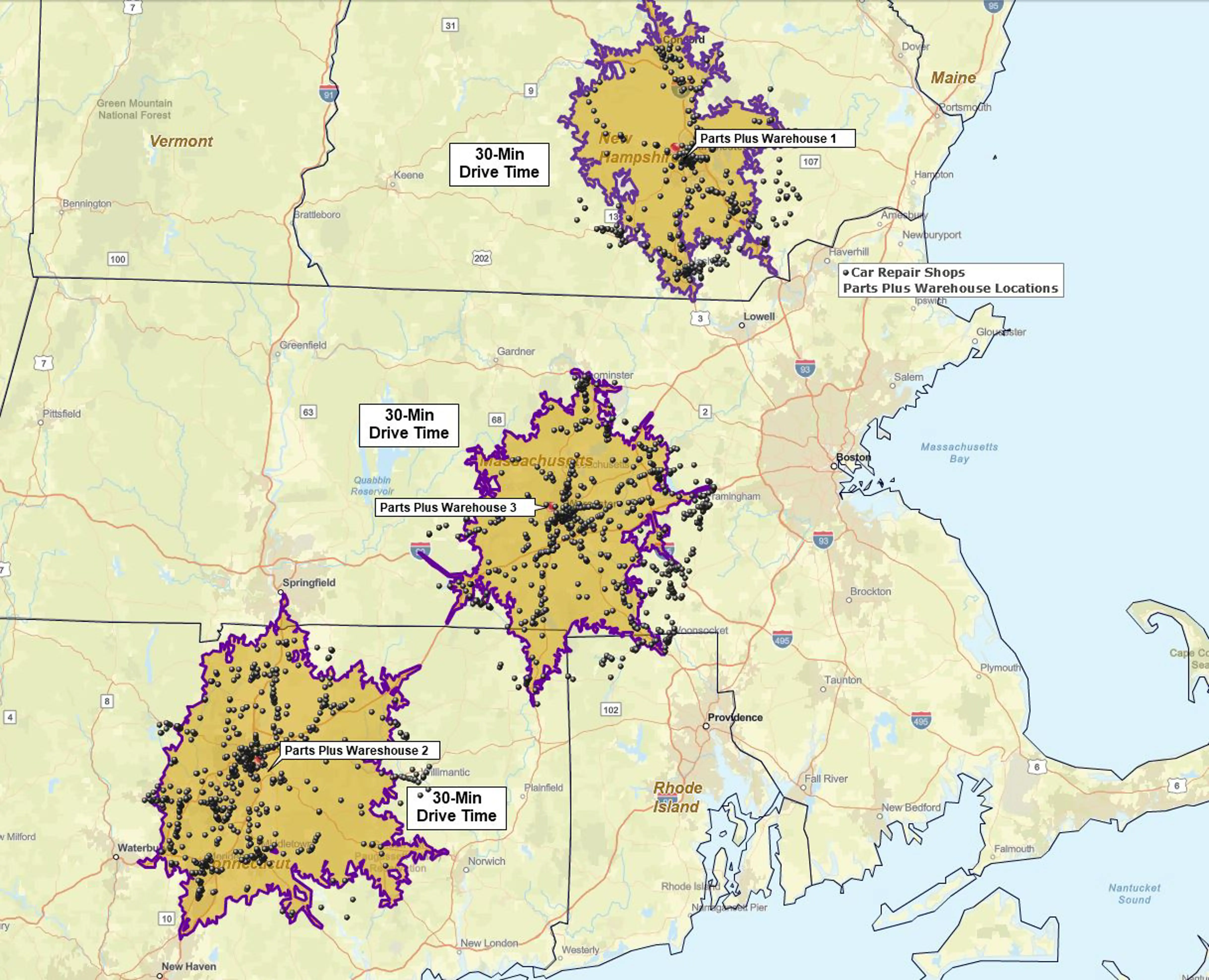
After creating a radius map, you can use it to search data, analyze markets, compare locations, and support territory planning.
Search Data Within a Radius: Identify customers, prospects, businesses, ZIP Codes, counties, and other geographic data located within a selected radius.
Summarize Demographics: Analyze population, income, age, consumer spending, and other demographic characteristics within a radius around a location.
Compare Locations: Apply the same radius to multiple stores, facilities, or candidate sites to evaluate coverage, market potential, and geographic reach.
Build Territories: Use radius-based areas as a starting point for sales territories, service areas, franchise markets, and delivery zones.
Looking for a broader overview of radius mapping software capabilities? Explore Radius Maps solution page.
Frequently Asked Questions
What Is a Radius Map?
A radius map creates a geographic area around a location using a specified distance, such as 5, 10, or 25 miles. Radius maps are commonly used to analyze customers, businesses, demographics, service areas, and territories within a defined distance of a location.
Can I Create Radius Maps for Multiple Locations at Once?
Yes. Import a spreadsheet of locations into MapBusinessOnline and generate radius maps for all locations using the same radius distance. This makes it easy to compare coverage areas across stores, facilities, territories, and candidate sites.
What Are Radius Rings?
Radius rings, also called concentric circles, are multiple radius maps created around the same location using different distances. Radius rings help segment customers by distance, compare demographics, and analyze nearby, mid-range, and extended market areas.
What Is the Difference Between a Radius Map and a Drive-Time Radius Map?
A radius map uses straight-line distance from a location, while a drive-time radius map uses road networks and estimated travel times. Drive-time areas are useful when accessibility and travel conditions are more important than simple distance.
Can I Export Data Found Within a Radius?
Yes. Locations, business listings, ZIP Codes, and other data identified within a radius can be exported for reporting, analysis, sales planning, territory management, and other business applications.
Create Your First Radius Map in Minutes
Build radius maps around stores, facilities, ZIP Codes, and candidate sites. Search data within a radius, summarize demographics, compare locations, and visualize geographic coverage using MapBusinessOnline.
No credit card required.
Learn How Our Customers Succeed with MapBusinessOnline

"MapBusinessOnline has played a major role in helping us to expand. It has helped us successfully map out our territories so that we know where we are and where we can be. With a clear picture of where we are, it has helped make it easier to locate available territory for our new Franchisees. MapBusinessOnline has even helped us keep our guarantee and carry out its promise for a five mile protection radius for each Franchisee. MapBusinessOnline has not only given us a map of where we are now, but it has also given us a map for our future."
Sine Schirmer
Franchise Support Department Head
The Tutoring Center Franchise Corp

"MapBusinessOnline one of the most powerful tools I have as a Regional Channel Manager. It’s a difficult task to visually represent the vast amount of data that I have to present to my customers and team members. MBO makes it easy to represent, configure, and manipulate the data on to an effective map. A picture is worth a thousand words, and MBO allows me to create a perfect picture."
Ed Ku
Regional Channel Manager
ABB

"This software is a game changer for me in the workplace. Easy to use tools and a fast system to do the job efficiently and effectively every time. I’ve been able to build more territories with confidence, bringing my team more growth opportunities for 2019"
Daina C.
Franchise Development Manager
Amada Franchise, Inc.



