Create a Sales Territory Map
Your Fastest Path to a Sales Territory Map
1. Create sales territories from the data you already have.
Build territories on the map or import assigned ZIP codes, counties, or states from a spreadsheet to get to a usable territory map quickly.
2. Review and refine each territory.
Add sales, customer, or demographic data to territories, compare coverage, and identify overlap or imbalance before rolling the map out.
3. Share the sales territory map with your team.
Publish an interactive territory map, export territory assignments as CSV file, and keep boundaries current as plans change.
A strong territory map does more than assign areas on a screen. It gives sales teams a practical way to organize coverage, evaluate opportunity, and keep territory plans current as the business changes. Here's how MapBusinessOnline helps teams create, refine, and share territory maps.
1. Create Territories from a File or on the Map
Creating a sales territory map starts with defining territories, either by importing existing assignments or by building them visually on a map. MapBusinessOnline supports both approaches.
Option A: Import Existing Territory Assignments
If your territories already exist in a spreadsheet, import that file directly.
These assignments often look like:
- ZIP codes mapped to territory names
- Counties or regions assigned to reps
This approach works best when:
- Territories are already defined, but not mapped
- You want a fast visual of current coverage
- The goal is validation, cleanup, or minor adjustment
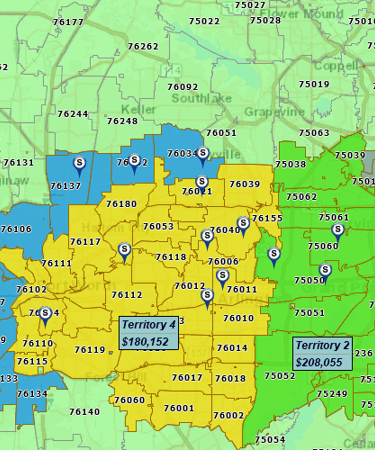
Imported territories appear immediately as shaded regions on the map, ready for review.
Option B: Create Territories Directly on the Map
If assignments don’t exist yet, you can create territories visually.
Start by turning on geographic boundaries that match how your business operates:
- ZIP codes for dense markets, franchises, retail, or inside sales
- Counties for regional field sales
- States for national or executive views
Once boundaries are visible, select areas to form territories. Most teams use a combination of:
- Lasso or multi-select tools
- Drive-time polygons (when travel time matters)
- Filtered selections based on attributes such as population or income
Create and name territories as you go. Assign reps if ownership is already known.
Whether imported or built manually, once territories exist on the map, you can layer in additional data to evaluate and refine them.
2. Add Business and Demographic Data
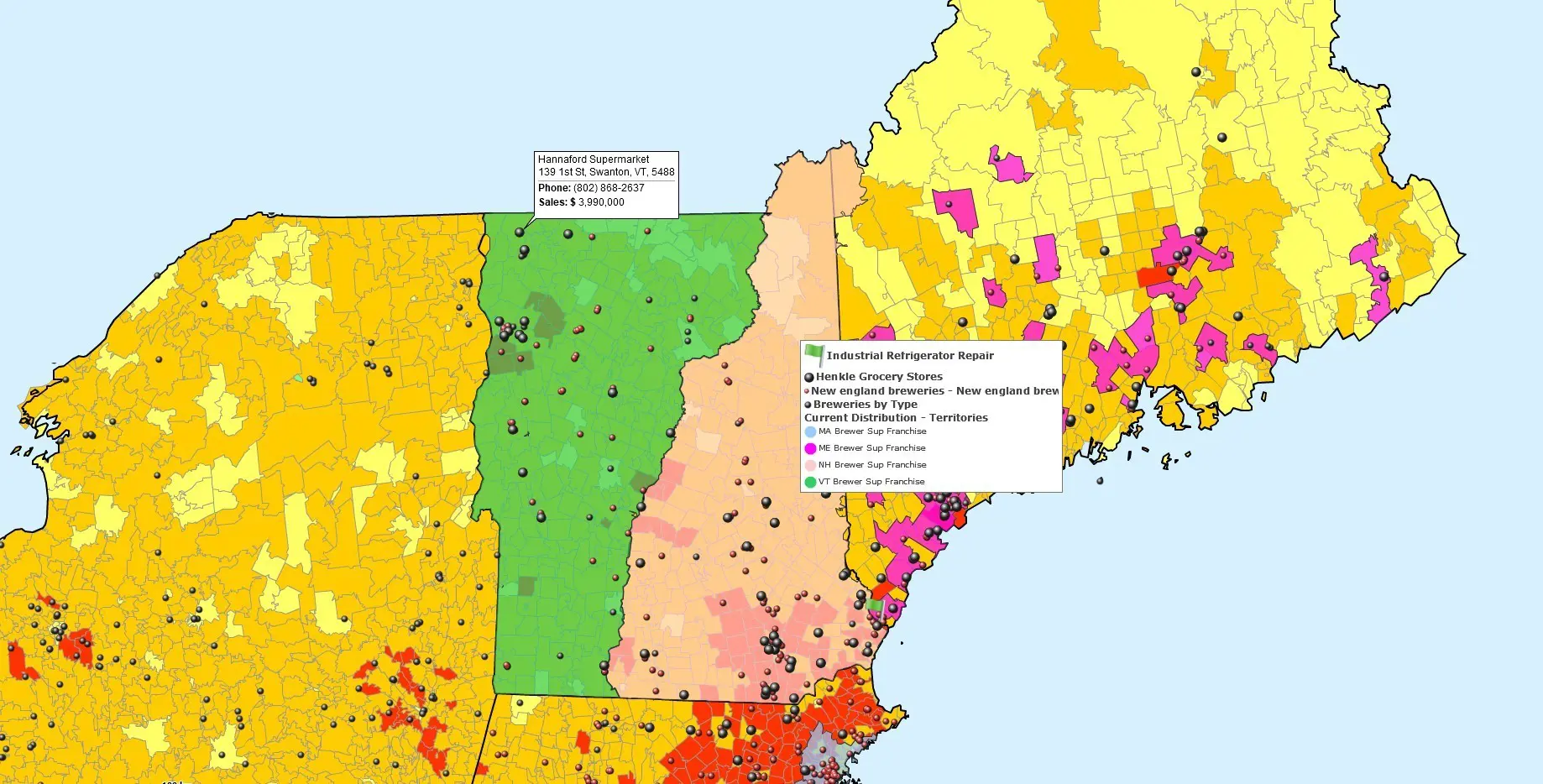
After territories are created, add location-based business data and Census demographic data (available in MapBusinessOnline) to help you evaluate territory size, workload, sales performance, and market opportunity.
For instance:
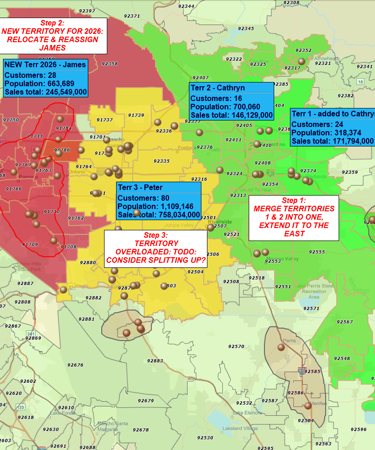
- Customer address and sales data can be used to calculate account counts and sales totals by territory automatically, and to export customer lists by territory.
- Demographic data, such as population or income, is frequently used to estimate territory potential, assess market penetration, or identify new lookalike markets to replicate success.
- Your sales and service facilities, such as rep homes, offices, or warehouses, can help you optimize logistics and ensure efficient travel times for each territory you design.
Import your location-based data from Excel or CSV files; addresses are automatically geocoded and displayed on the map.
Use demographic data available for your map layer (e.g., ZIP codes) to view the relevant demographic variables in the data window, add them to your map labels, or color-code your sales territories by them.
3. Review Sales Territories
Once territories and supporting data are visible on the map, you have everything you need to review how well the current territories align with your business objectives and how well they perform. There are a few distinct tasks at this stage:
- Check market potential by examining the demographic profile of each territory for setting realistic goals, allocating resources, and planning expansion.
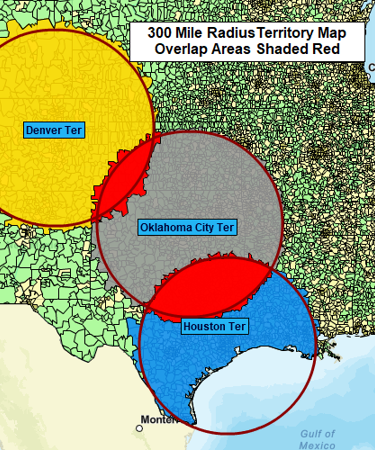
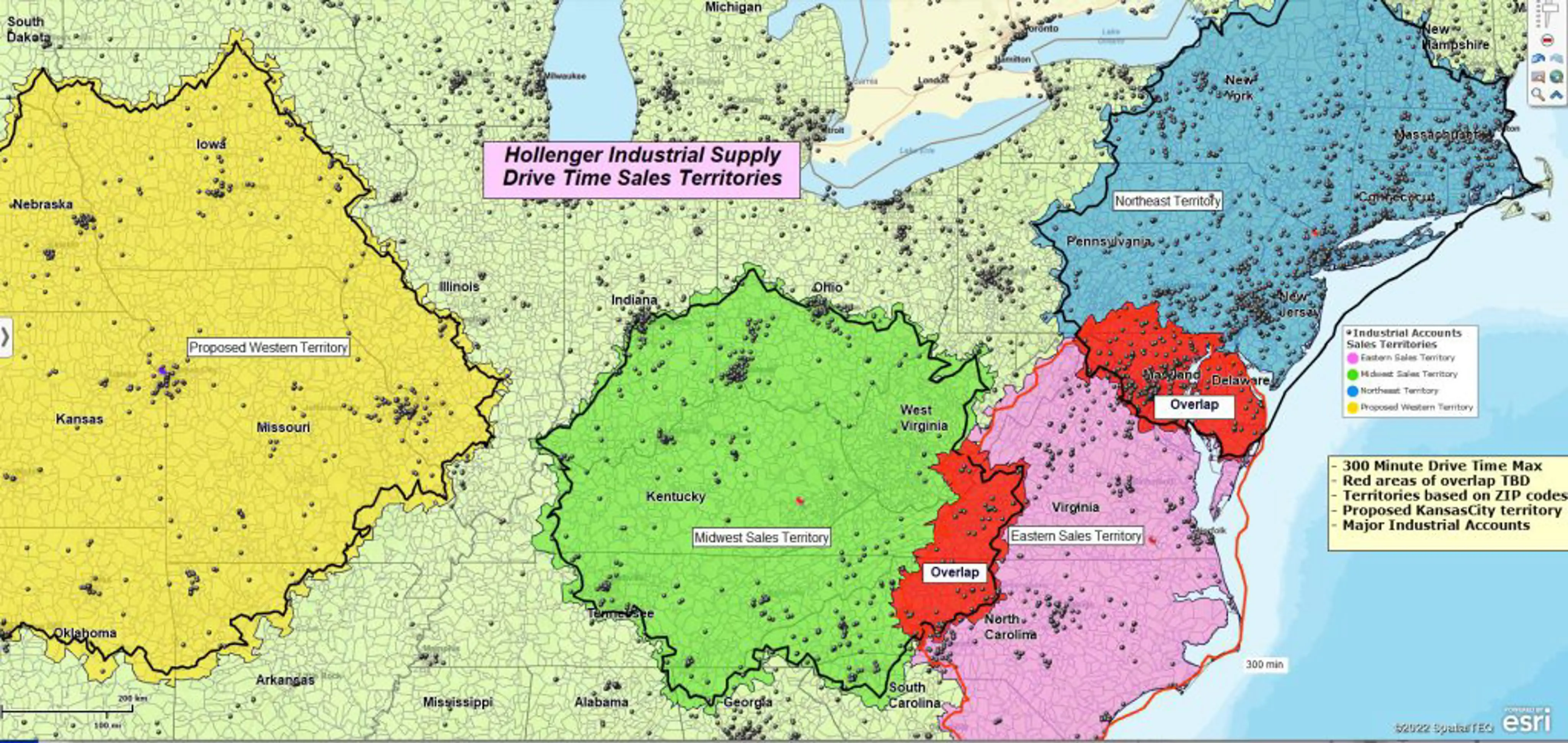
- Identify coverage gaps and overlaps by visually checking the territory boundaries.
- Validate travel efficiency with drive-time analysis to identify territories that require too much windshield time.
- Review territory results by comparing sales performance to the targets and to the market potential.
4. Balance Sales Territories
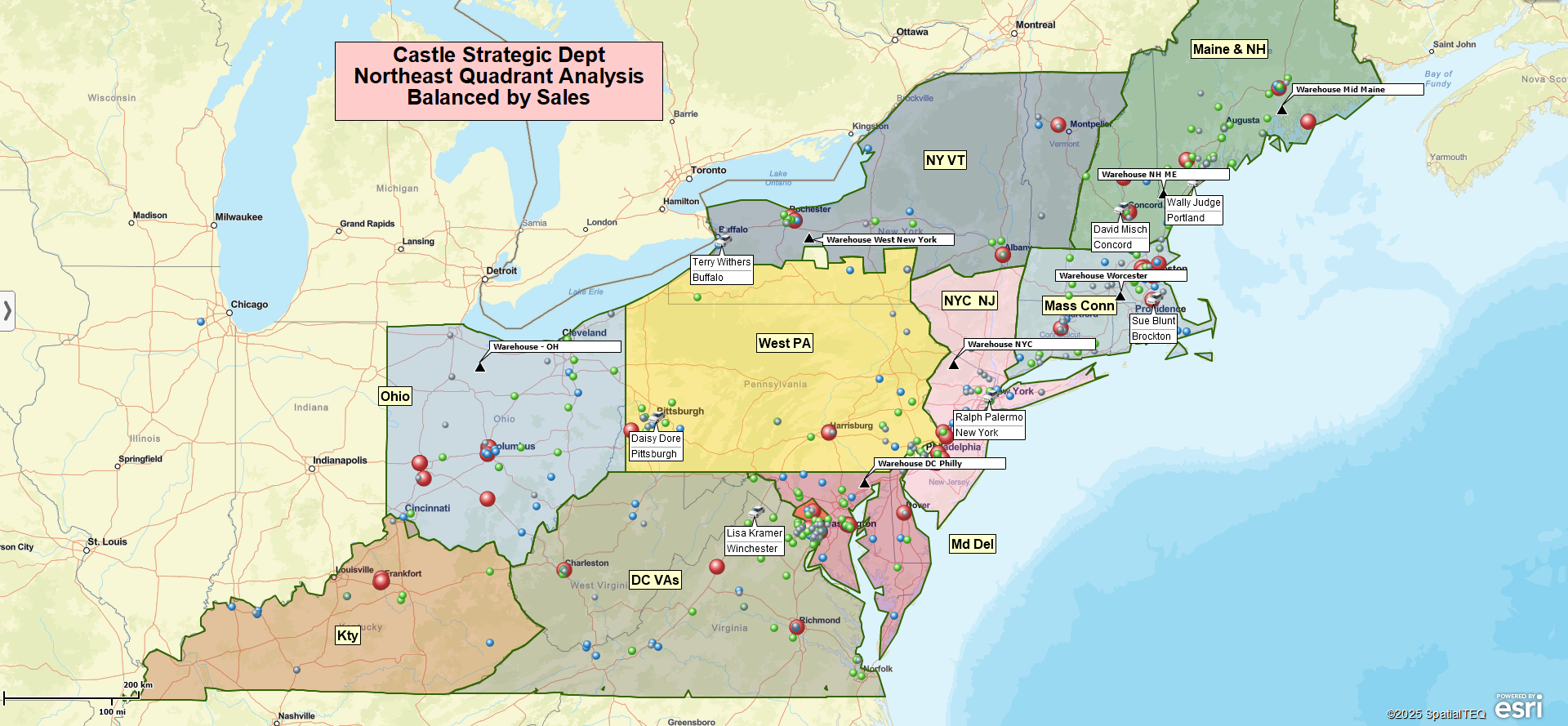
Finally, using the customer, sales, or demographic data you added, compare territories by relevant balancing metrics. Balancing sales territories basically means aligning workload or opportunity with each rep’s capacity or capability – not necessarily making territories numerically equal. Common balancing measures include:
- Population or other demographic totals
- Account count
- Sales
Perfect balance is rarely realistic. A 10–20% variance is common and acceptable. The goal is to eliminate obvious extremes and ensure territories reflect both opportunity and rep capacity.
When imbalances appear, adjust territory boundaries by adding or removing territory units (e.g., ZIP codes). In MapBusinessOnline, territory metrics update instantly in labels and the data window, making it easy to test changes and see their impact.
Reviewing and balancing territories are iterative. Most teams repeat these steps several times before finalizing territories.
5. Share with the Team
Once territories are finalized, make them operational. A shared visual source of truth reduces disputes, speeds onboarding, and keeps everyone aligned. MapBusinessOnline supports read-only sharing, collaborative editing, and high-resolution map exports. There are two primary options for sharing territories within the team.
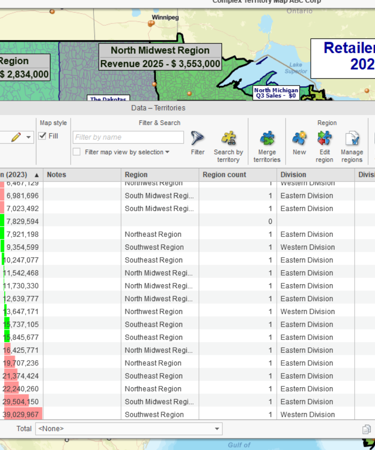
Export a CSV file with territory assignments, such as territory names and included ZIP codes, counties, or regions, for use in CRM, reporting, compensation, or onboarding workflows.
Or share an interactive map so managers can review the full territory structure and reps can clearly see their assigned areas.
Start Building Your Territory Map
Try MapBusinessOnline free to import territories or build them on the map using your own data.
How Our Customers Succeed with Sales Territory Mapping

"MapBusinessOnline is the only tool available that allowed our team the ability to create visual territories by zip code and then export the data into a spreadsheet. We were able to then populate our ERP system with that data/logic and create automated rules based on customer address zip codes. We cut out the manual process of inside sales entering incorrect freight delivery zones upon sales order entry. Now when sales orders are entered, we automatically populate the correct delivery zones that MBO allowed us to create. Ultimately, this is saving our company money and improving efficiency when shipping material to customers.
I highly recommend MBO, and we only have scratched the surface with what the solution can do."
Patrick Kloiber
Business Intelligence Manager
Palisades Holdings, Inc.

"This software is a game changer for me in the workplace. Easy to use tools and a fast system to do the job efficiently and effectively every time. I’ve been able to build more territories with confidence, bringing my team more growth opportunities for 2019"
Daina C.
Franchise Development Manager
Amada Franchise, Inc.


"MapBusinessOnline has made it easy for DriSteem to locate and compare Rep territories. Every single person in our office has a map from MapBusinessOnline at their desk and refers to it daily. We are thankful to be using MapBusinessOnline for developing our business and outside sales representative team!
Thank you MapBusinessOnline!"
Abby Rogers
Marketing Coordinator
DriSteem Corporation

More on Sales Territory Mapping
See additional MapBusinessOnline sales territory mapping capabilities on this page.


