Create, Open, or Save Maps
In MapBusinessOnline you can make and save multiple maps. Saved maps are accessed from any computer – that’s the benefit of cloud-based mapping software. Other users can view or edit maps shared by you.
Create map
- Click ‘New map’ icon on MapBusinessOnline main toolbar to make a new map. Map Business Online will prompt you to save current map if necessary.
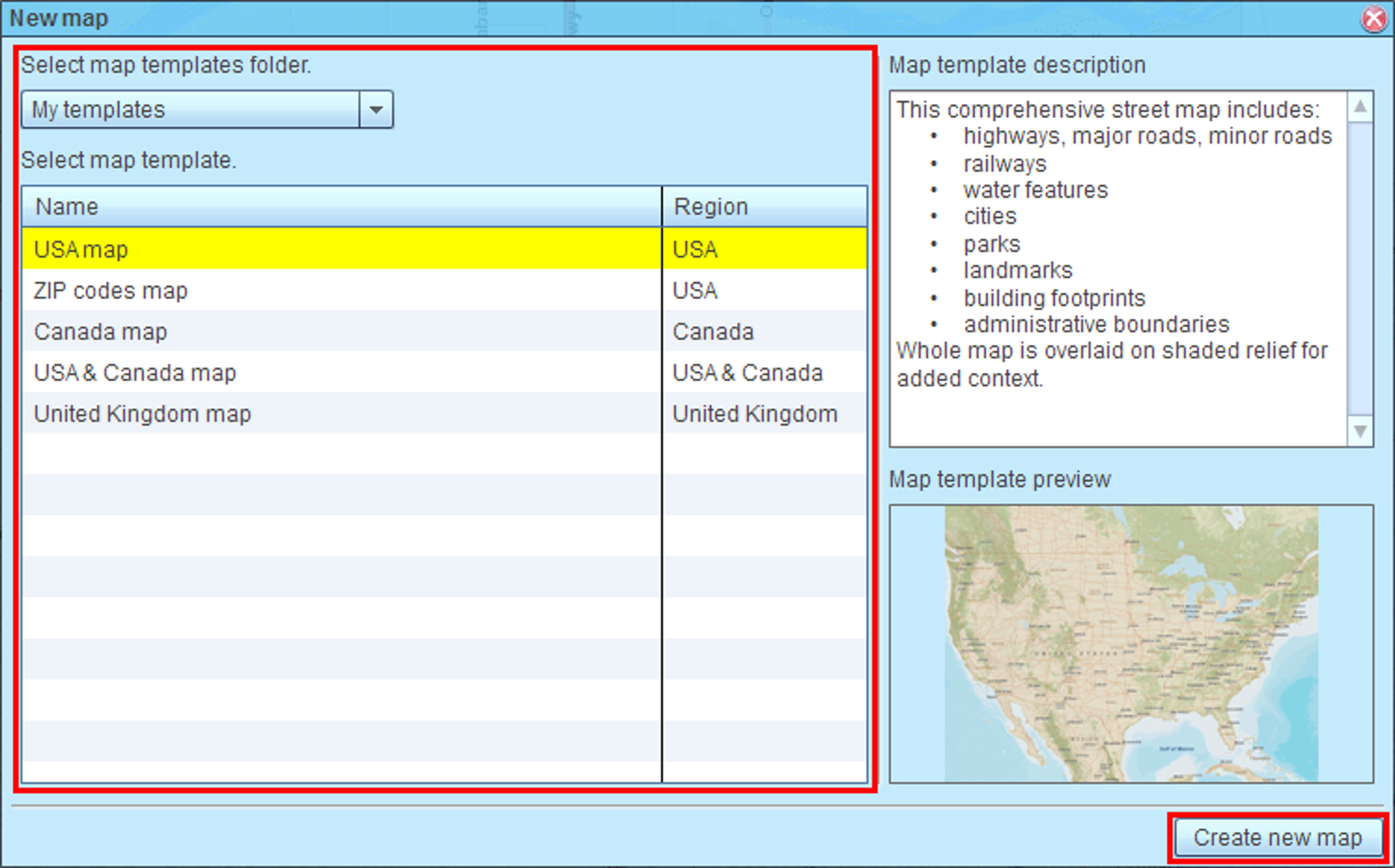
- In ‘New map’ dialog select desired template and click ‘Create new map’ button.
- Once new map has been created, you can plot datasets or add map layers to the map.
Save map
- Save your map by clicking ‘Save map’ icon on MapBusinessOnline main toolbar.
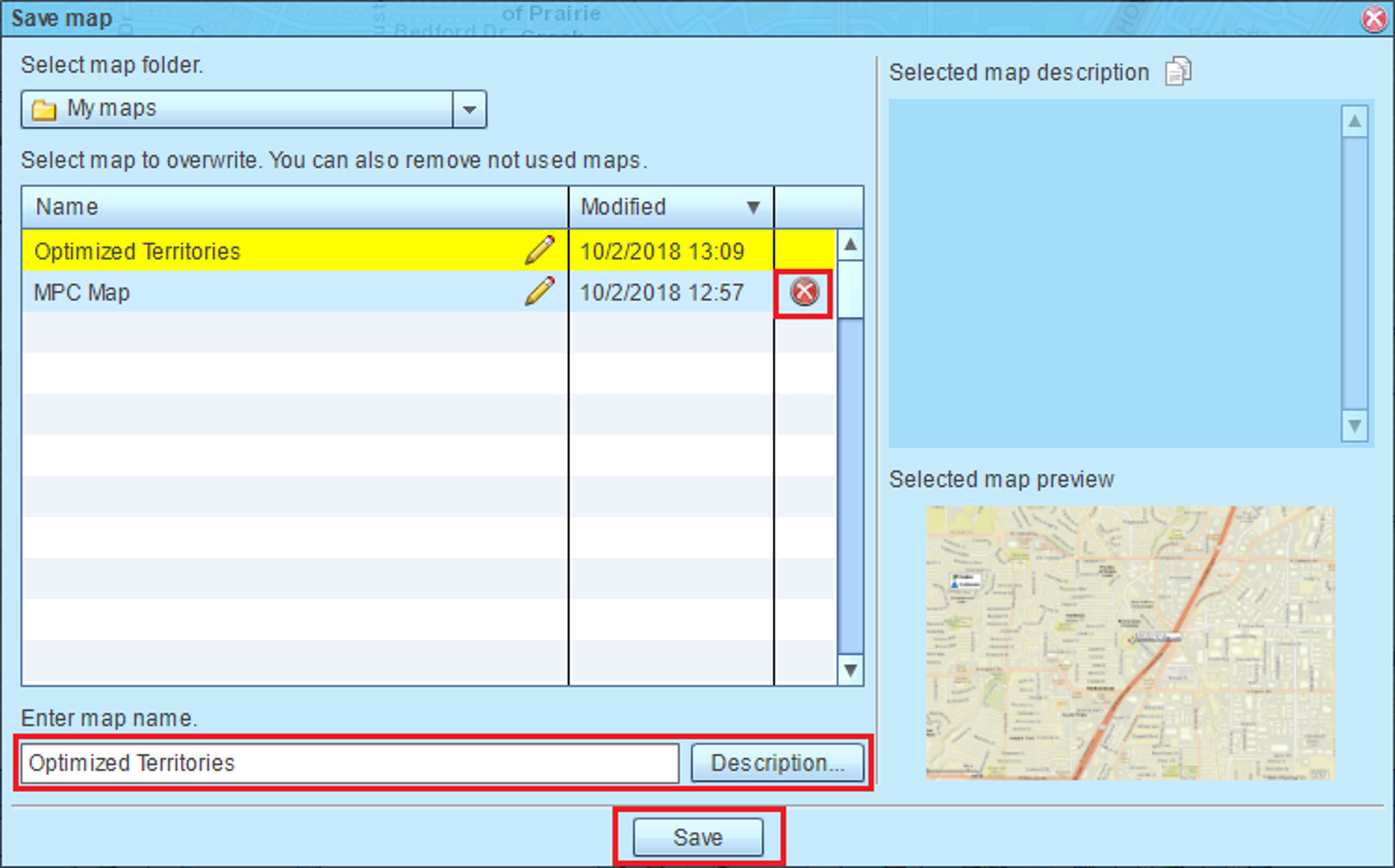
- ‘Save map’ dialog will appear with list of maps that exist on MapBusinessOnline server. Enter a new map name or select an existing map to overwrite. Click ‘Description’ button to type in a map description. Finally click ‘Save’ button.
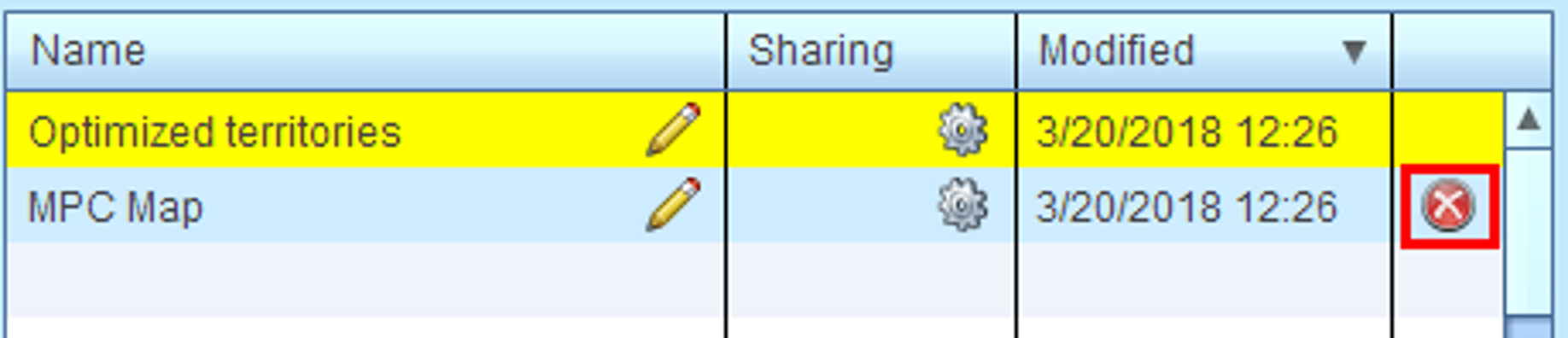
Note: you can delete unused maps from server in ‘Save map’ dialog. Just stop mouse pointer over a map. Delete icon will appear in the rightmost column.
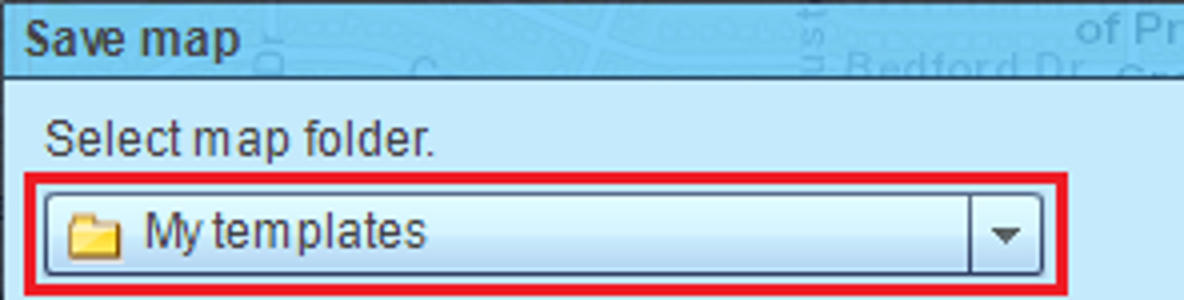
- It’s possible to save a map as a map template for new maps. Just select ‘My templates’ folder in ‘Save map’ dialog to do that.
Open map
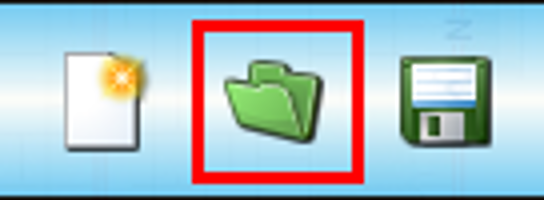
- Open a map from server by clicking ‘Open map’ icon on the main toolbar. MapBusinessOnline will prompt you to save current map if necessary.
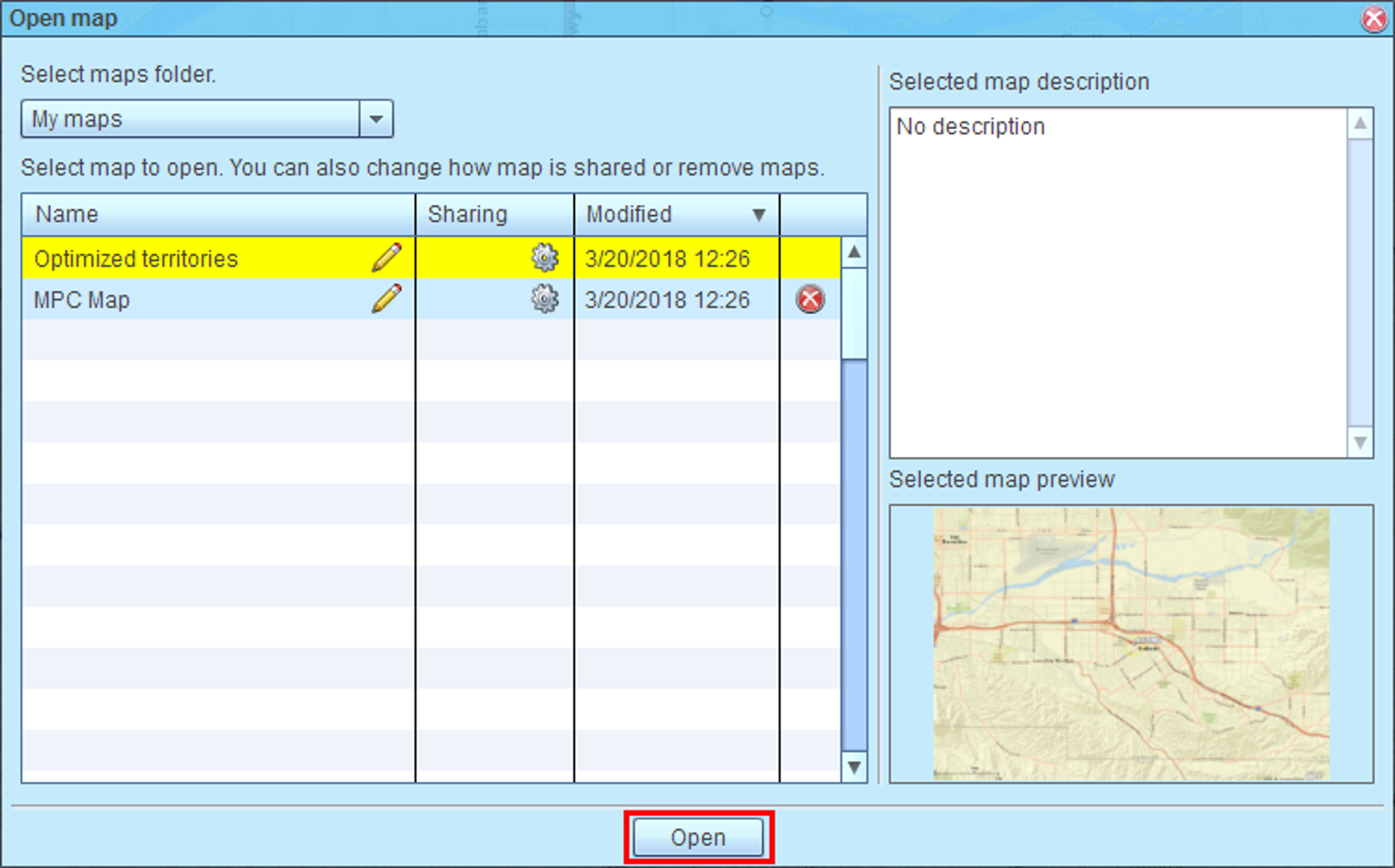
- ‘Open map’ dialog will pop up with list of maps that exist on MapBusinessOnline server. Select a map and click ‘Open’ button.
Delete map
- To delete a map from MapBusinessOnline server, go to ‘Open map’ dialog per instructions provided above. When inside ‘Open map’ dialog stop mouse pointer over a map and click delete icon that will appear in the rightmost column.